Interest-based personalization
Leverage users' interests to boost engagement and conversions.
One of the biggest challenges for marketers is understanding the interests of anonymous users when they first visit a website.
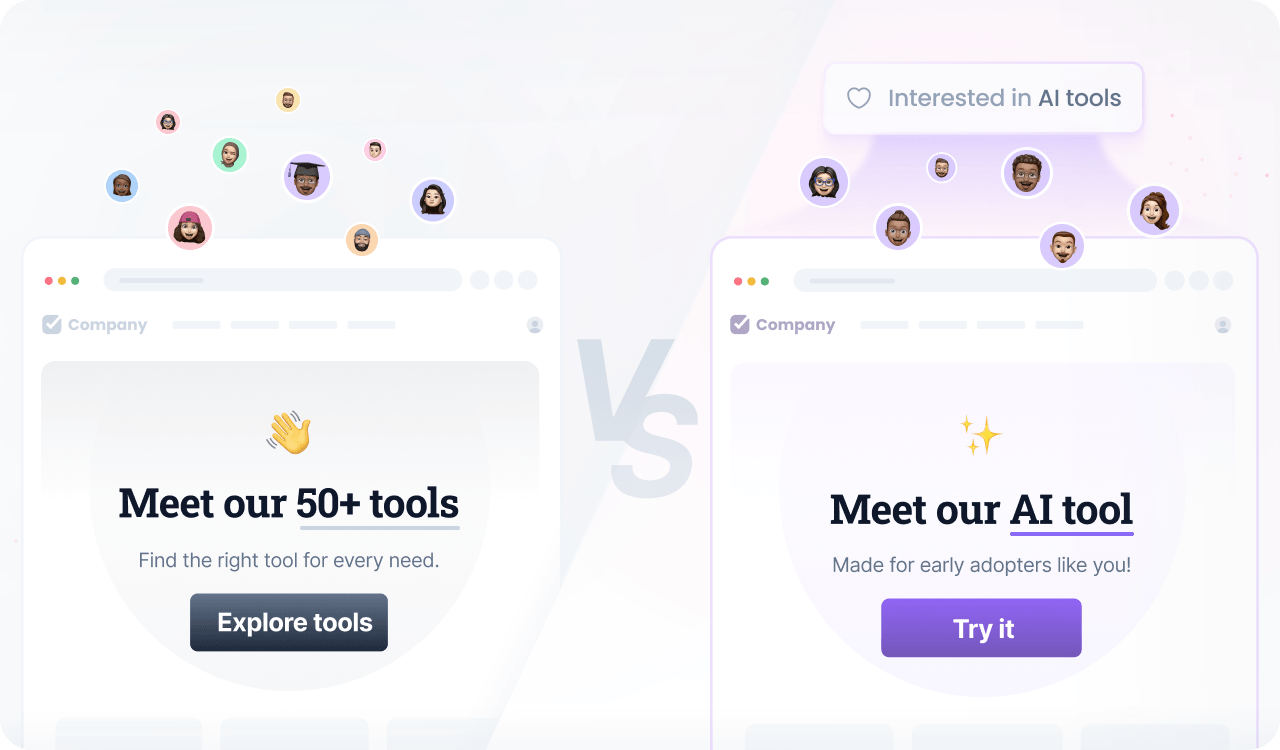
By leveraging anonymous users’ data, you can create segments that correspond to their preferences and display targeted copy and images to increase conversion rates.
Prerequisites
Before you start, make sure you have:
- A Croct account with a workspace and application set up.
- Integrated a slot into your project.
If you have not done any of these, follow the instructions on the provided links and come back here once the setup is done.

You can use the CLI to run a template instead of manually configuring this on the interface. We provide one for SaaS and another for e-commerce websites.
Step by step
Follow this to configure your experience:
- Create an experience
Open the experiences page in the admin app and click New experience to create an experience.
- Define an audience
In the Audience tab, click New audience and define the criteria.
Browsing behavior reveals interests. For example, target users by the pages they visit:
user has viewed a page with url like "something"By the blog posts they read:
user has viewed a post with title like "something"Or by the product categories they browse:
user has viewed a product with category "something"For more precise targeting, also track the Interest shown event and include it in the audience:
user has viewed a page with url like "something"or user has shown interest in "something" - Select the slot
Click the Slot tab and select the ones you want to personalize.
You can select multiple slots across the website to maintain consistent communication. Some popular choices are the announcement bar, hero section, and callout slots.
- Define the personalized content
Click the Content tab to specify which content should be shown to those users in the selected slots.
- Preview and publish
Publish your experience or click Preview to see the magic happen.