HubSpot form personalization and testing
Show the right form to each visitor and test which one converts best.
Forms are where most visitors convert, so a single static form rarely fits every audience. A long-form approach that works for enterprise leads can scare off self-serve users, and the field that resonates with one segment can add friction for another.
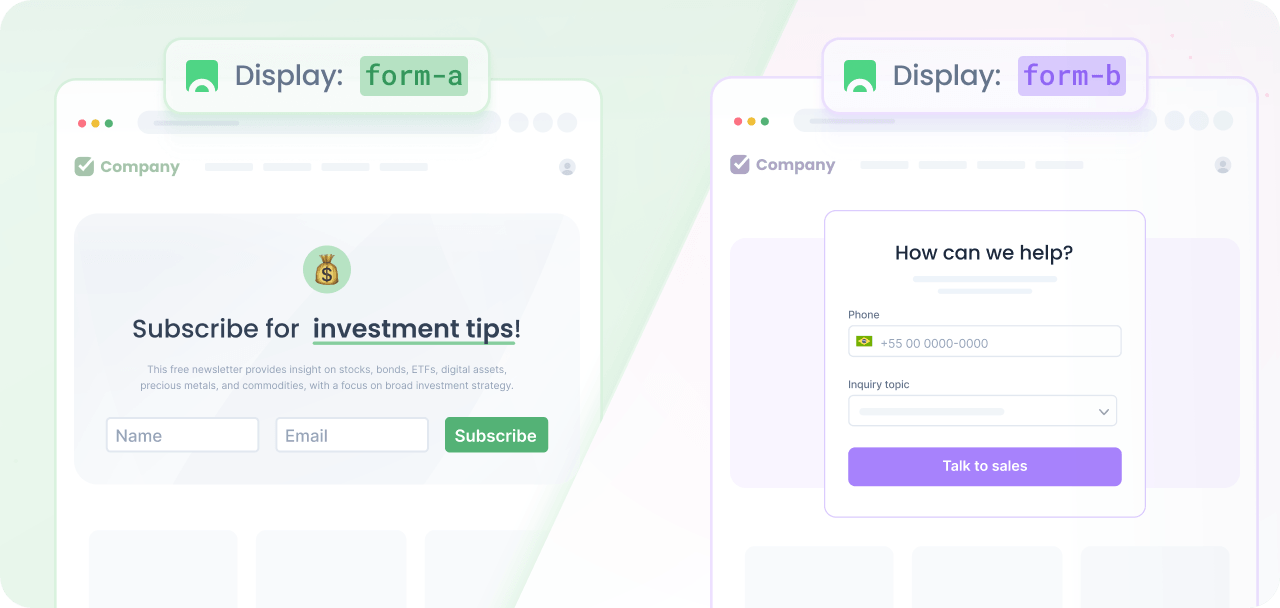
With Croct, you can show a different form to each visitor and measure which one converts best. You control the form through a slot, so a personalized experience or an AB test decides which form each user sees.
Prerequisites
Before you start, make sure you have:
- A Croct account with a workspace and application set up.
- A slot that stores the form to render, with the page reading the form from it. The HubSpot forms integration tutorial walks through this.
- A goal completed event tracking for form submissions, if you want to run an AB test. The same tutorial covers tracking submissions.
If you have not done any of these, follow the instructions on the provided links and come back here once the setup is done.

Because the form ID lives in a slot, you never hardcode it again. An experience or experiment changes the slot’s return value, and your page renders the matching form automatically.
Personalize the form
Use a personalized experience when you already know which form each audience should see. For example, a shorter form for returning visitors or a sales-focused form for enterprise leads.
- Create an experience
Open the experiences page in the admin app and click New experience to create an experience.
- Define an audience
In the Audience tab, click New audience and define the criteria for the visitors who should see the alternative form.
For example, you can target high-intent accounts coming from a campaign:
campaign's source is "linkedin"and campaign's name matches "enterprise" - Select the slot
Click the Slot tab and select the slot that holds the form, for example hubspot-form.
- Define the personalized content
Click the Content tab and set the formId attribute to the ID of the Hubspot form you want this audience to see.
- Preview and publish
Publish your experience or click Preview to see the magic happen.
Test which form converts best
If you want to learn which form performs better before rolling it out, you can run an experiment for all users or for a specific audience.
- Create an experience
Open the experiences page and click New experience.
- Define an audience
You can target all users to test it across your entire traffic, or create an audience to narrow it down. In this case, click New audience on the Audience tab and define the segment you want to test.
For example, you can test only on returning visitors:
user is returning - Select the slot
Click the Slot tab and select the slot that holds the form, for example hubspot-form.
- Set up the experiment
Click the Experiment tab, give it a name like Form length test, and select the form-submission goal to measure which form drives more submissions.
Set the percentage of eligible users who will participate. Use 100% to include the whole audience.
- Define the variants
Create two variants and split traffic evenly between them (50/50). In the Content tab, set a different formId for each:
- Variant A: the ID of your current form.
- Variant B: the ID of the alternative form.
- Publish and read the results
Click Publish and launch the experience.
Once the experiment collects enough data, open the Performance per Goal widget to compare submission rates. When a variant clearly wins, apply its form to the experience and stop the experiment.