Using the Storyblok app
Manage personalization and AB tests without leaving Storyblok.
Optimize by Croct is a Storyblok app that brings personalization and AB testing directly into the Storyblok interface. It lets you connect any block to a slot, so marketers can manage dynamic content without touching code.
This feature is available only to accounts on the Scale plan. See the pricing page for more information.
Integrating the app
Before using the app, you need to connect your Storyblok space to Croct and add the Optimize field to the blocks you want to give dynamic capabilities. Follow the integration tutorial to get set up.
Navigating the app
Once you have installed the app and opened it within Storyblok, you will have access to a centralized interface to manage your dynamic content.
The interface is divided into six main areas:
- Dashboards: A high-level view of your website’s performance, including key traffic, engagement, and conversion metrics.
- Profiles: A list of visitors who browse the website, with their unique profile attributes and a timeline of their events and interactions.
- Audiences: A list of visitor segments defined by behavior, interests, geolocation, and more.
- Dynamic blocks: A list of all your blocks, where you control which ones are dynamic.
- Slots: A list of all your slots, where you can manage their content and connection status.
- Experiences: A list of your Personalized experiences and AB tests, with tools to create, manage, and analyze their performance.
Defining dynamic blocks
A dynamic block is a block that has the Croct plugin field enabled.
Open the Optimize app tab on the left menu, under Apps.
Open the Dynamic blocks area and find the block you want to make dynamic.
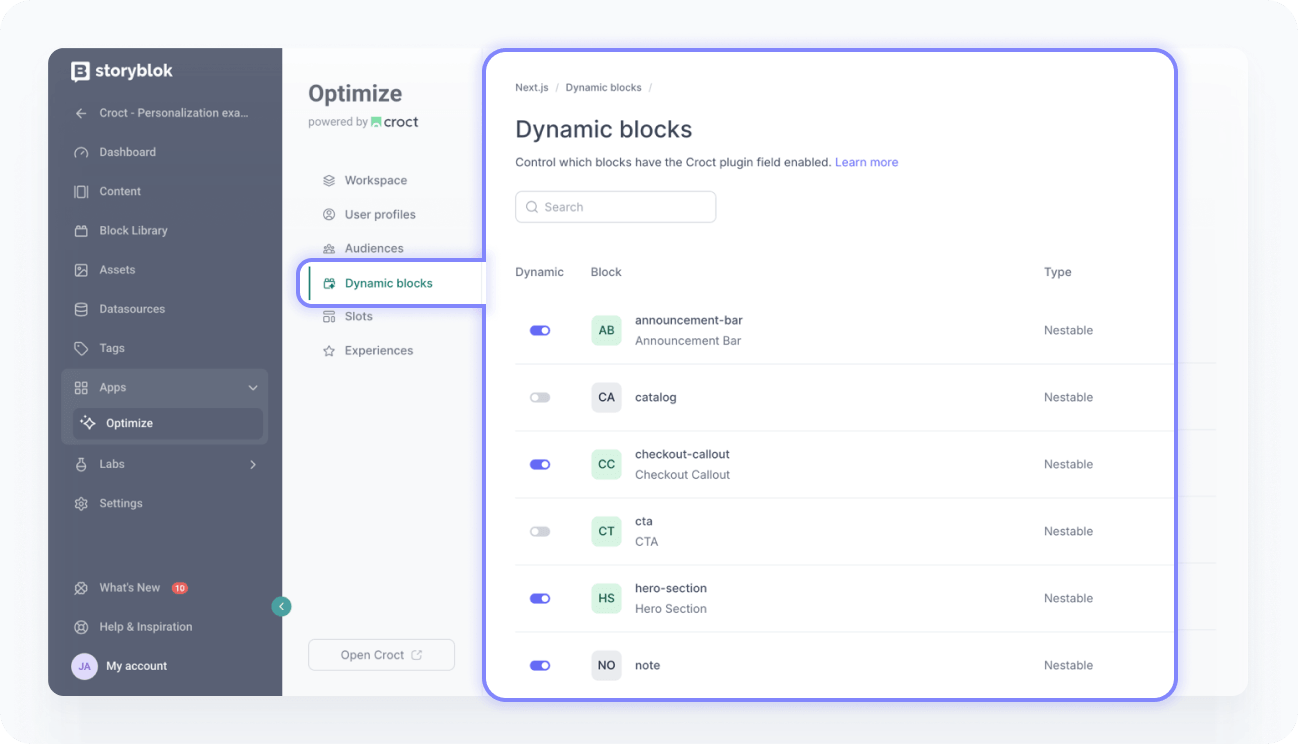
Toggle the block on.
Connecting blocks
Once the integration is set up, you can connect any block to a slot directly from the Storyblok editor.
Open your Storyblok story and find the block you want to use for dynamic content.
Open the block’s settings and locate the Optimize field.
Use the dropdown to select the slot you want to connect, or create a new one.
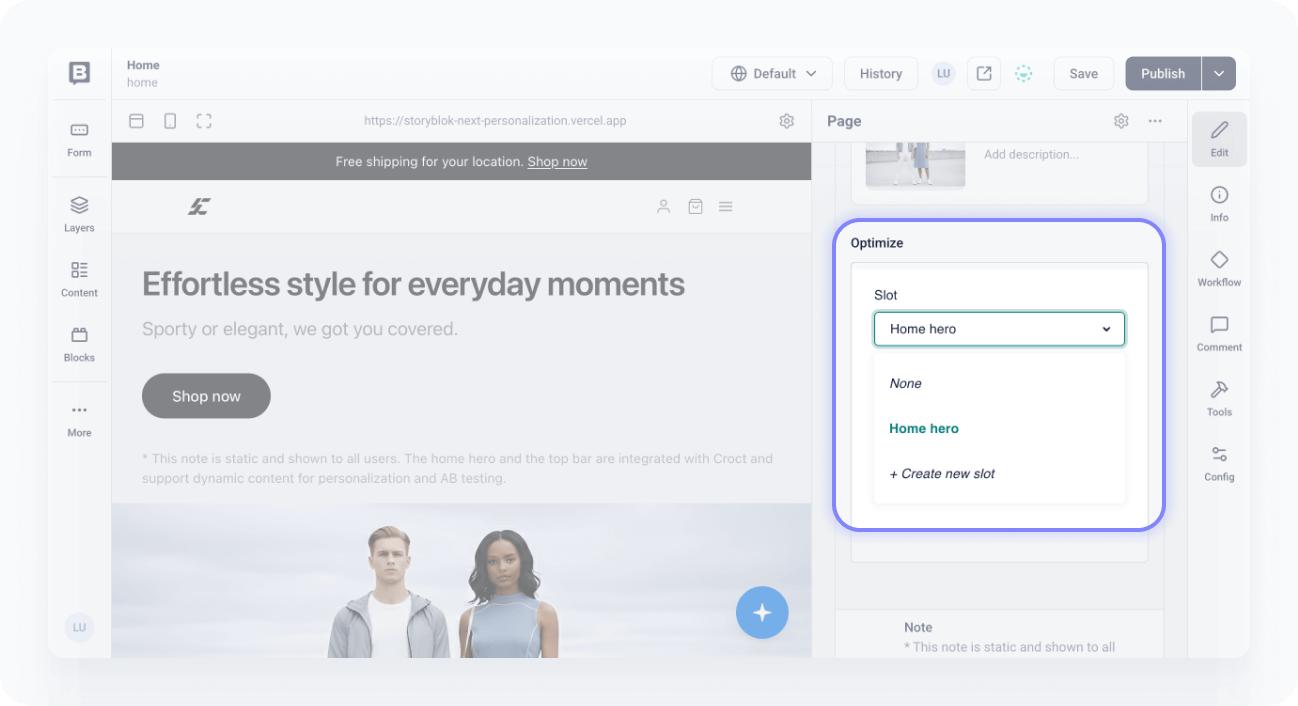
Save your changes.
If it’s a new slot, click the link “Connect this slot” to connect it to the block. You’ll be redirected to the slots page, where you’ll find your new slot with the status Missing.
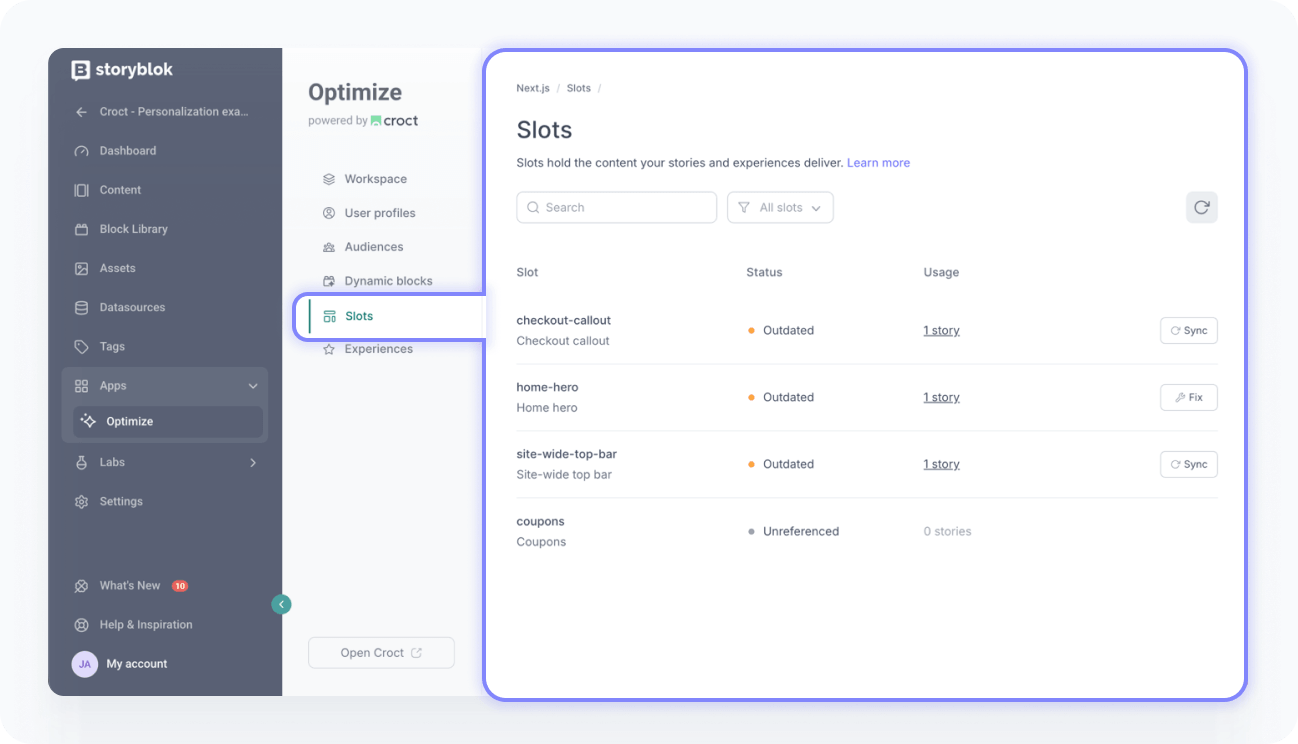
Click Add to complete the connection. Once done, the status changes to Active.
Managing your slots
The slots page lists all your slots and provides more information about their connection status.
| Status | Meaning |
|---|---|
| Active | The slot is in use, and its schema is up to date. |
| Outdated | The slot is out of sync with the story’s block. |
| Missing | The slot is referenced in a story but hasn’t been created yet. |
| Conflicting | The slot is referenced by multiple stories with incompatible blocks. |
| Unreferenced | The slot exists but is not referenced by any story. |
From this page, you can perform the following actions:
| Action | Description |
|---|---|
| Add slot | Connects a slot to story blocks. |
| Sync schema | Updates the slot’s component to mirror the current block schema. |
| Mirror content | Updates the slot default content, which can be used as a base for personalized experiences and experiment variants. |
| View issues | Provides a list of errors and warnings that should be fixed. |
Table and reference fields are not supported for dynamic personalization and AB testing.
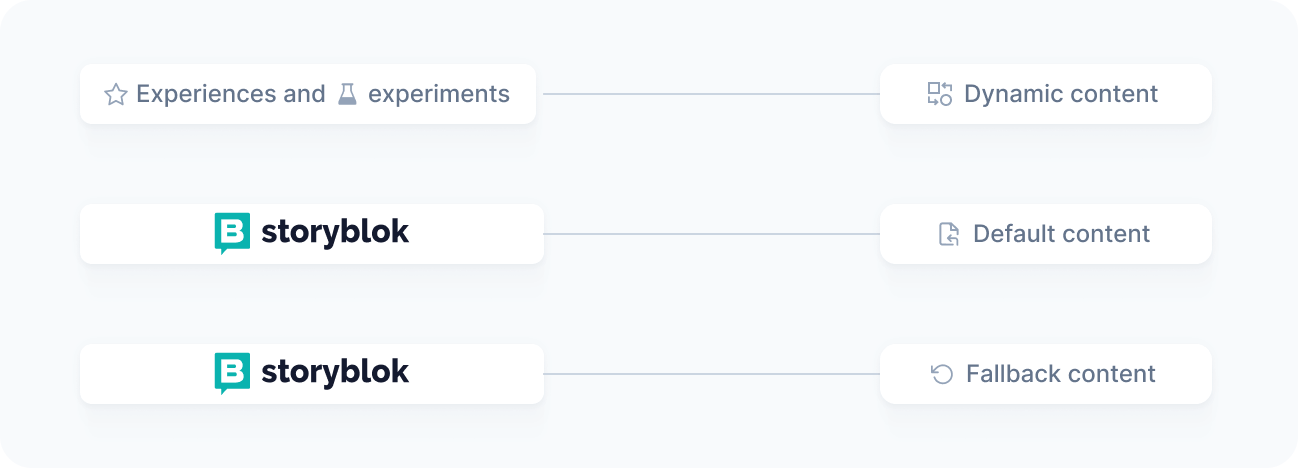
Once connected, your Storyblok content acts as the default and fallback for visitors not targeted by any active experience, while we automatically inject dynamic content for those who match your audience criteria.
Optimizing your content
With your blocks connected to slots, you are ready to create experiences and AB tests. Refer to the get started tutorials for step-by-step instructions.