Get started with the Storyblok app
Install Optimize and connect your Storyblok space to Croct.
Optimize by Croct is a Storyblok app that brings personalization and AB testing directly into the Storyblok interface. It connects your Storyblok space to Croct and lets you link any block to a slot, so marketers can manage dynamic content without touching code.
This tutorial walks you through installing the app, configuring a block, and linking it to a slot.
This feature is available only to accounts on the Scale plan. See the pricing page for more information.
Prerequisites
Before you start, make sure you have:
- A Croct account with a workspace and application set up.
- A Storyblok account with a space and at least one story set up.
Storyblok requires manual vendor approval for installing external apps. Please reach out to us and confirm that your email has been approved before getting started. This should only take a few minutes on our side.
Install the app
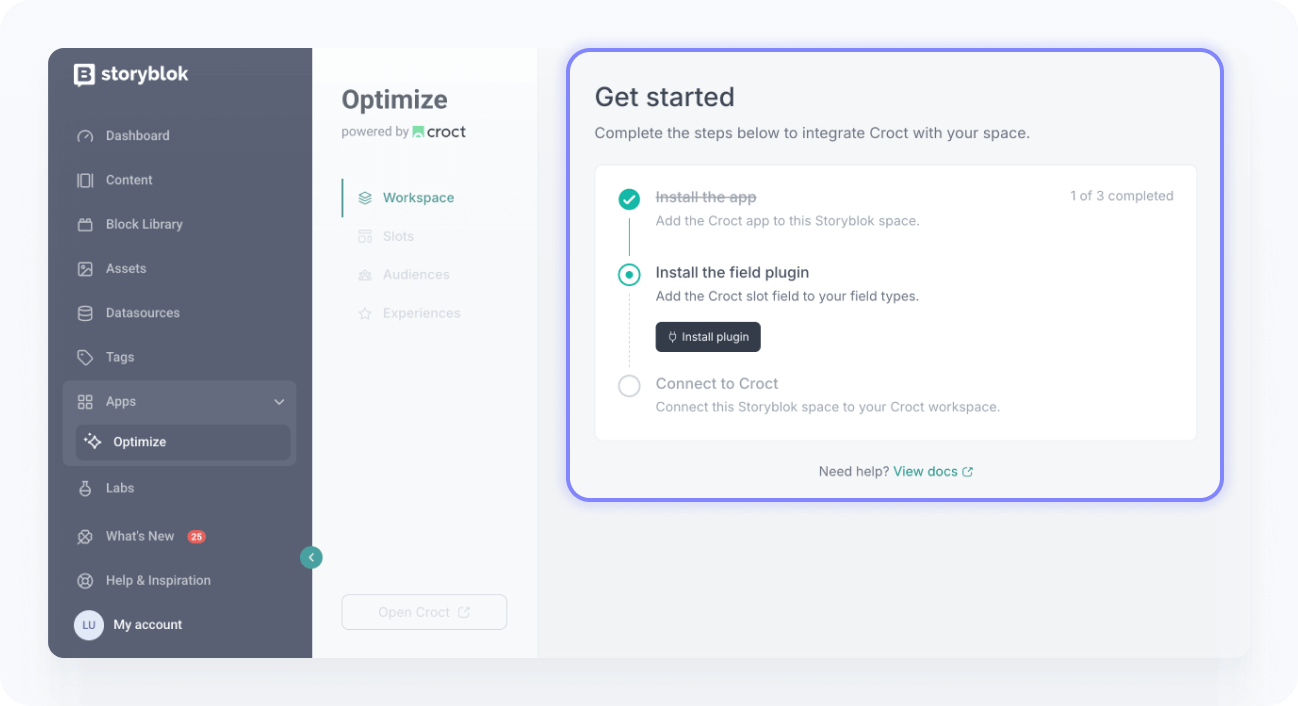
The app is available in Storyblok’s app directory. Once installed, the onboarding will guide you through connecting your space to Croct and setting up the field plugin.
Access the integration and install it.
Follow the onboarding instructions to install the field plugin and connect your Storyblok space to Croct.
Add the Storyblok integration to your project:
npmnpx croct@latest initIf you prefer to set things up manually, follow the manual installation instructions.
Make your first block dynamic
Giving a block dynamic capabilities means adding the Optimize plugin field to it.
Open the Optimize app tab on the left menu, under Apps.
Open the Dynamic blocks area and find the block you want to make dynamic.
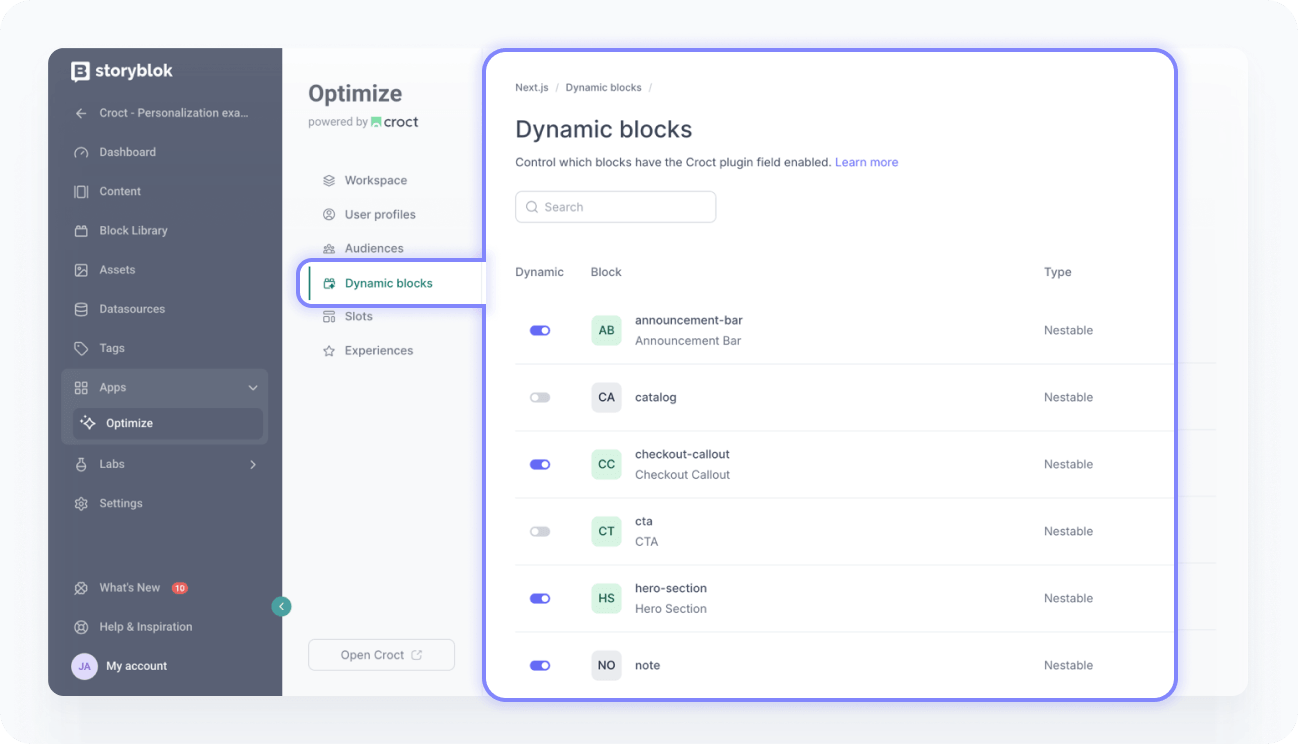
Toggle the block on.
Connect your first block
With your block made dynamic, you can now connect it to a slot.
Open your story and find the block you want to use for dynamic content, such as your home hero section.
Open the block’s settings and locate the Optimize field.
Click + Create to create a new slot.
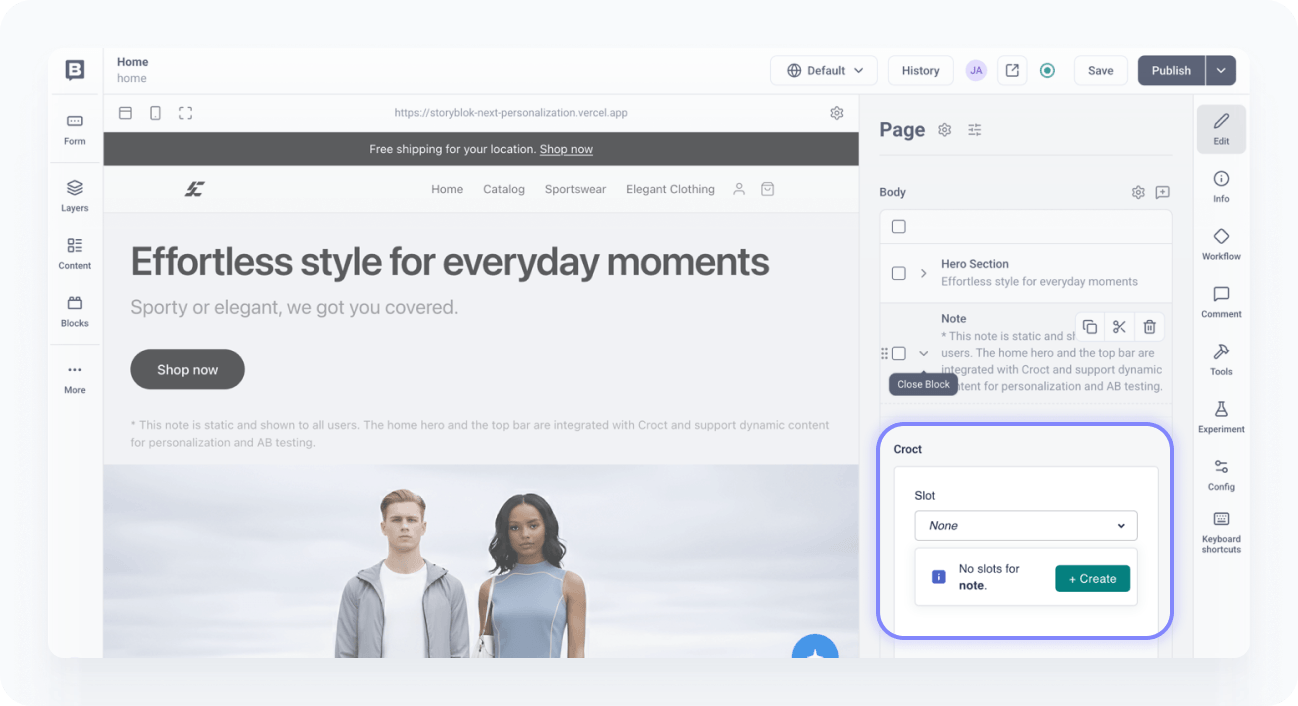
Save your changes.
Click the link “Connect this slot” to connect the new slot to the block. You’ll be redirected to the slot page, where you’ll find your new slot with the status Missing.
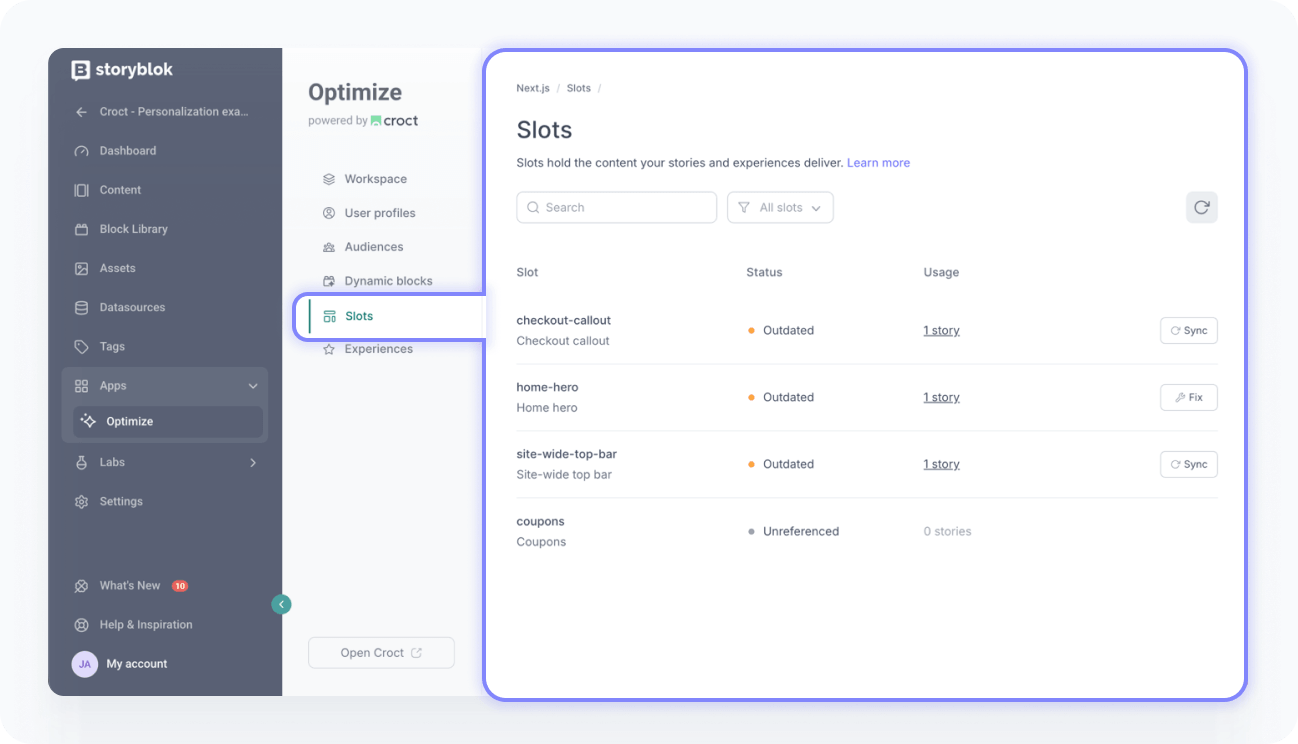
Click Add to complete the connection. Once done, the status changes to Active.
Table and reference fields are not supported for dynamic personalization and AB testing. If your block contains these fields, the status will show as Conflicting.
Try it out
Verify that the integration is working:
- Open your application
Load a page that renders the connected block. You should see the default Storyblok content.
- Launch a personalized experience
Create and publish a Personalized experience or an AB test targeting the connected slot.
- Confirm personalized content
Reload the page as a visitor who matches your audience. You should see the dynamic content instead of the Storyblok default.
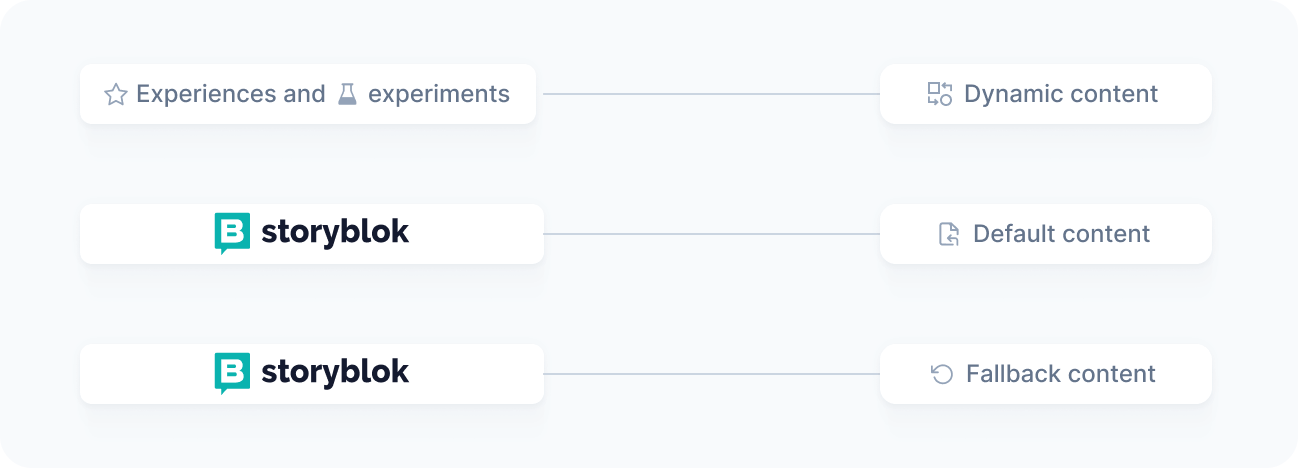
Your original Storyblok content serves as the default and fallback for visitors not targeted by any active experience.