Get started with Storyblok
Install Optimize and connect your Storyblok space to Croct.
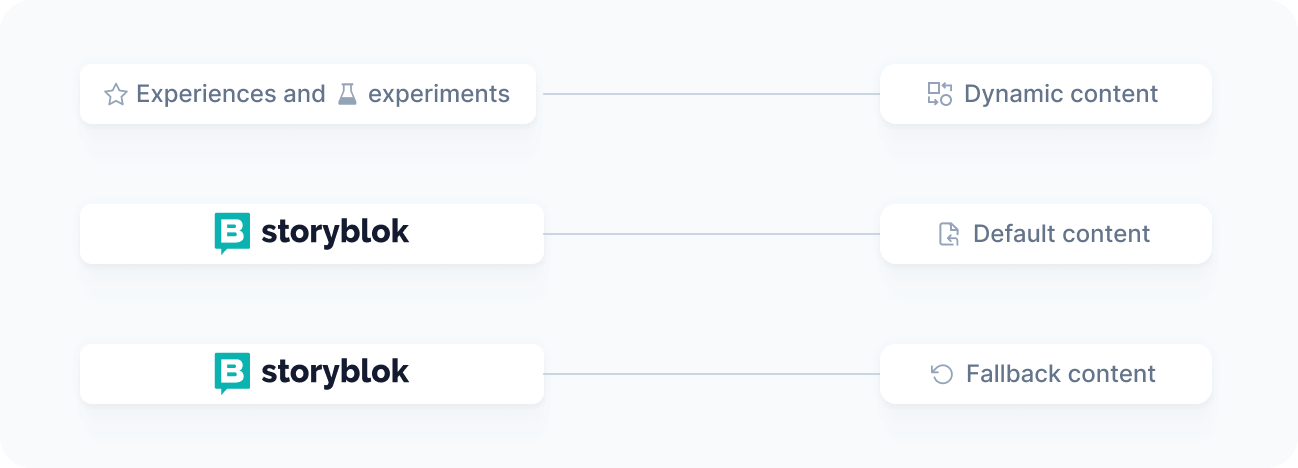
Optimize by Croct is a Storyblok app that brings personalization and AB testing directly into the Storyblok interface. It connects your Storyblok space to Croct and lets you link any block to a slot, so marketers can manage dynamic content without touching code.
This tutorial walks you through installing the app, configuring a block, and linking it to a slot.
This feature is available only to accounts on the Scale plan. See the pricing page for more information.
Prerequisites
Before you start, make sure you have:
- A Croct account with a workspace and application set up.
- A Storyblok account with a space and at least one story set up.
Storyblok requires manual vendor approval for installing external apps. Please reach out to us and confirm that your email has been approved before getting started. This should only take a few minutes on our side.
Install the app
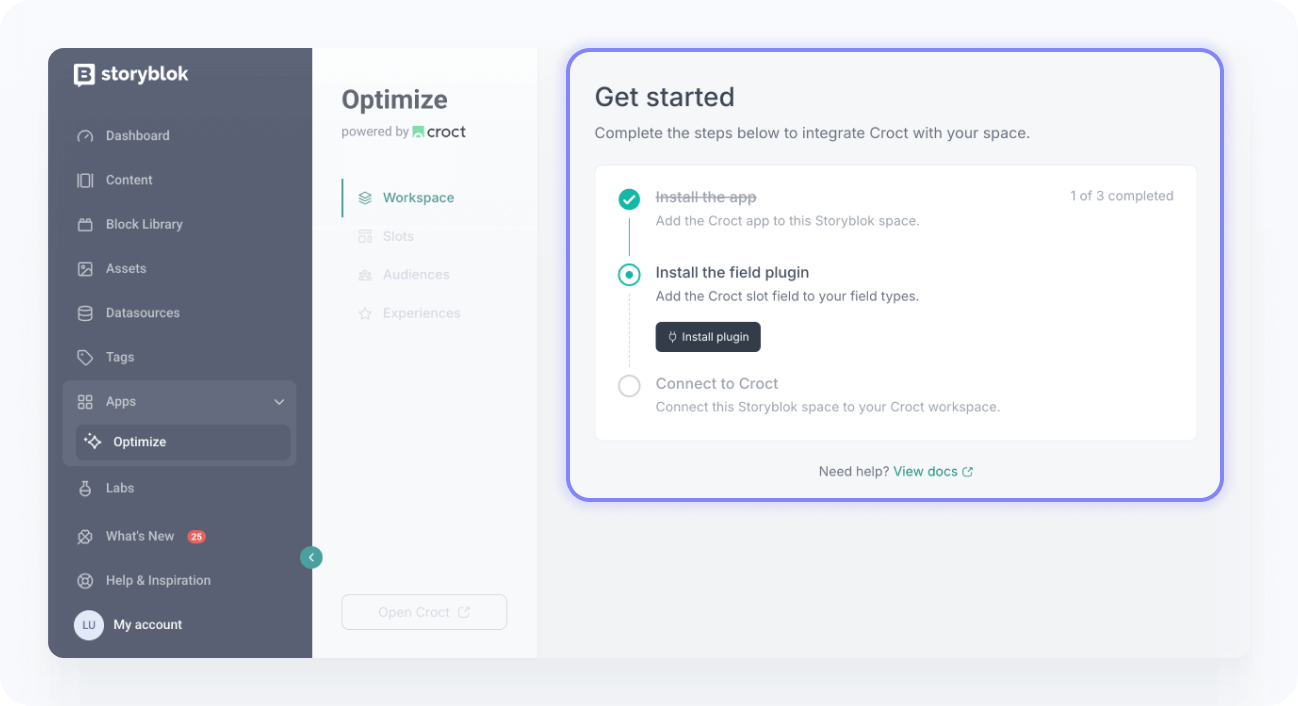
The app is available in Storyblok’s app directory. Once installed, the onboarding will guide you through connecting your space to Croct and setting up the field plugin.
Access the integration and install it.
Follow the onboarding instructions to install the field plugin and connect your Storyblok space to Croct.
Add the Storyblok integration to your project:
npmnpx croct@latest initIf you prefer to set things up manually, follow the manual installation instructions.
Add the field
The Croct field is a plugin field that connects a Storyblok block to a slot. Add it to every block you want to give dynamic capabilities by following the steps below.
Open your Storyblok block library and find the block you want to configure.
Add a new plugin field to this block and name it exactly croct.
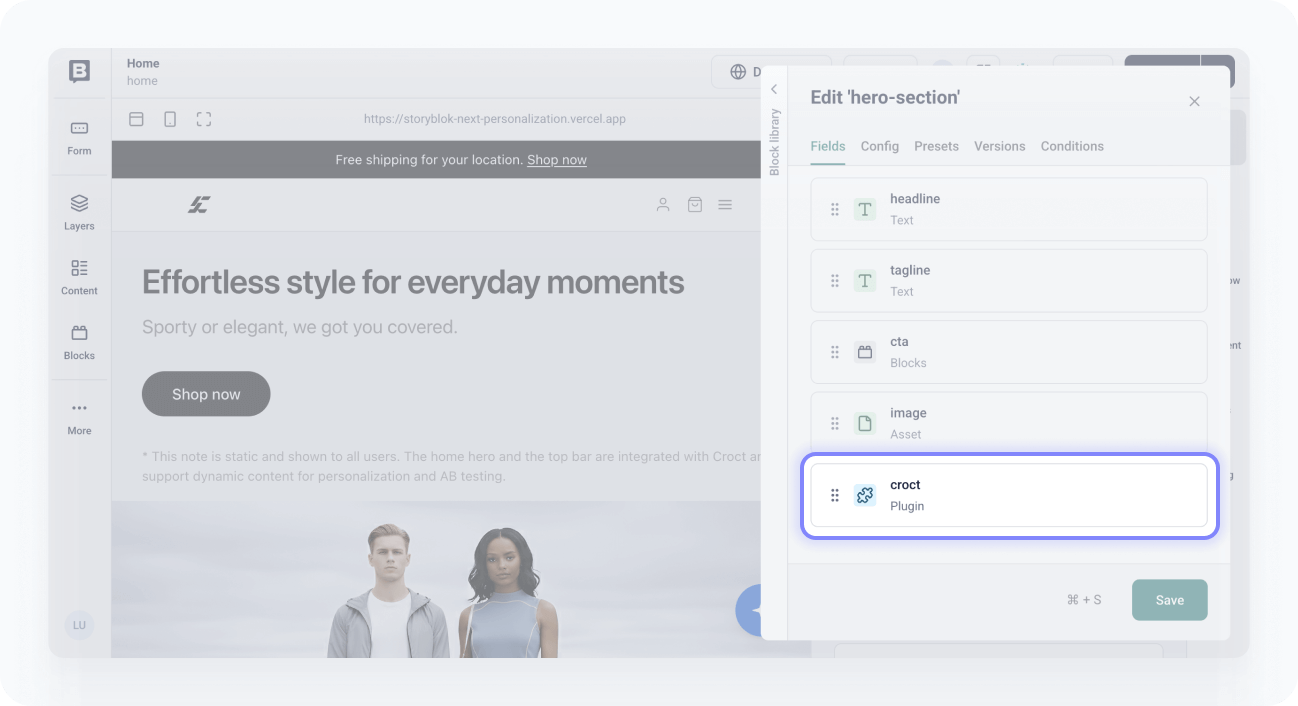
Set the custom type to croct-field and save your changes.
Rich text, table, and reference fields are not supported for dynamic personalization and AB testing.
Create a component and slot
A Croct component defines the content structure that maps to your Storyblok block, and the slot is the placeholder your application fetches content from. Follow this tutorial to create both.
The Croct component must mirror your Storyblok block’s structure exactly, using the same attribute names.
Connect slots to blocks
With the field plugin installed and a slot created, you can now link the two together.
Open your story and find the block you want to use for dynamic content, such as your home hero section.
Open the block’s settings and locate the Optimize field.
Use the dropdown to select the slot you want to connect.
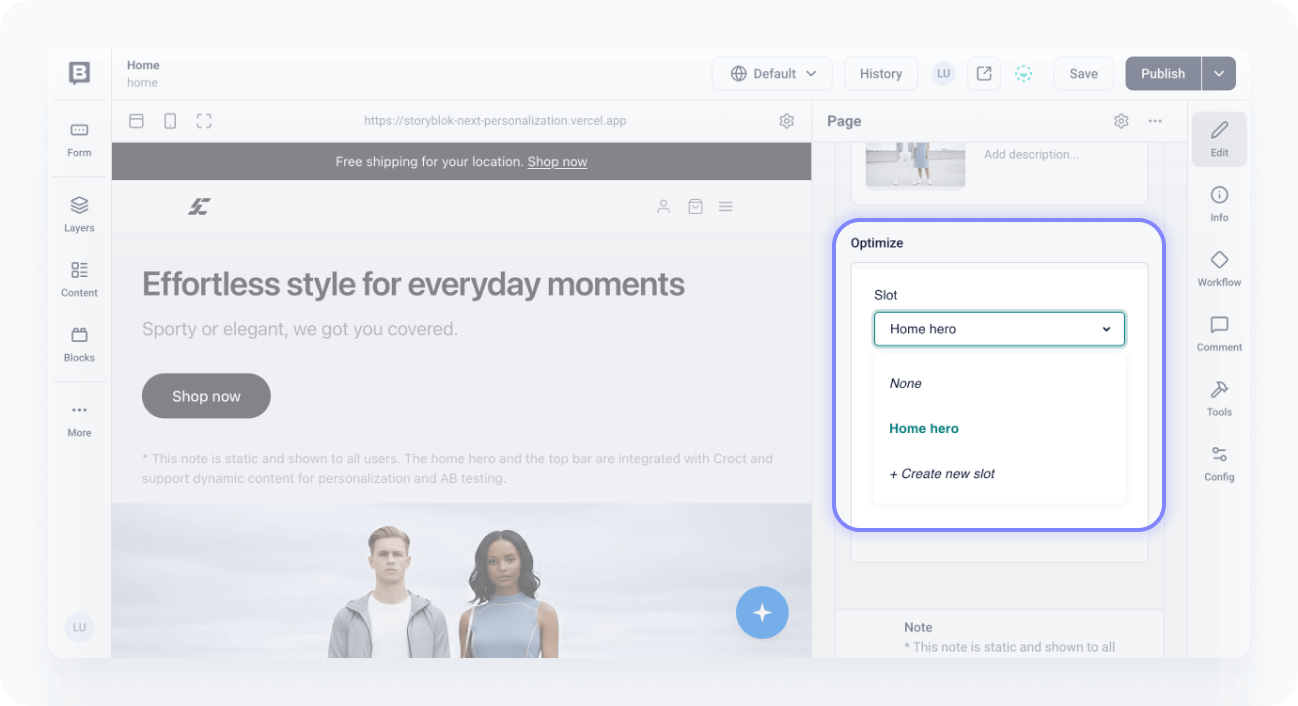
Save your changes.
Try it out
Verify that the integration is working:
- Open your application
Load a page that renders the connected block. You should see the default Storyblok content.
- Launch a personalized experience
Create and publish a Personalized experience or an AB test targeting the connected slot.
- Confirm dynamic content
Reload the page as a visitor who matches your audience. You should see the dynamic content instead of the Storyblok default.
Your original Storyblok content serves as the default and fallback for visitors not targeted by any active experience.