Timeline
Understand how users behave across sessions.
The timeline shows a chronological view of a user’s sessions and the events that occurred within each one. It helps you understand how a user navigates your applications over time, what actions they take, and how their behavior evolves across different visits.
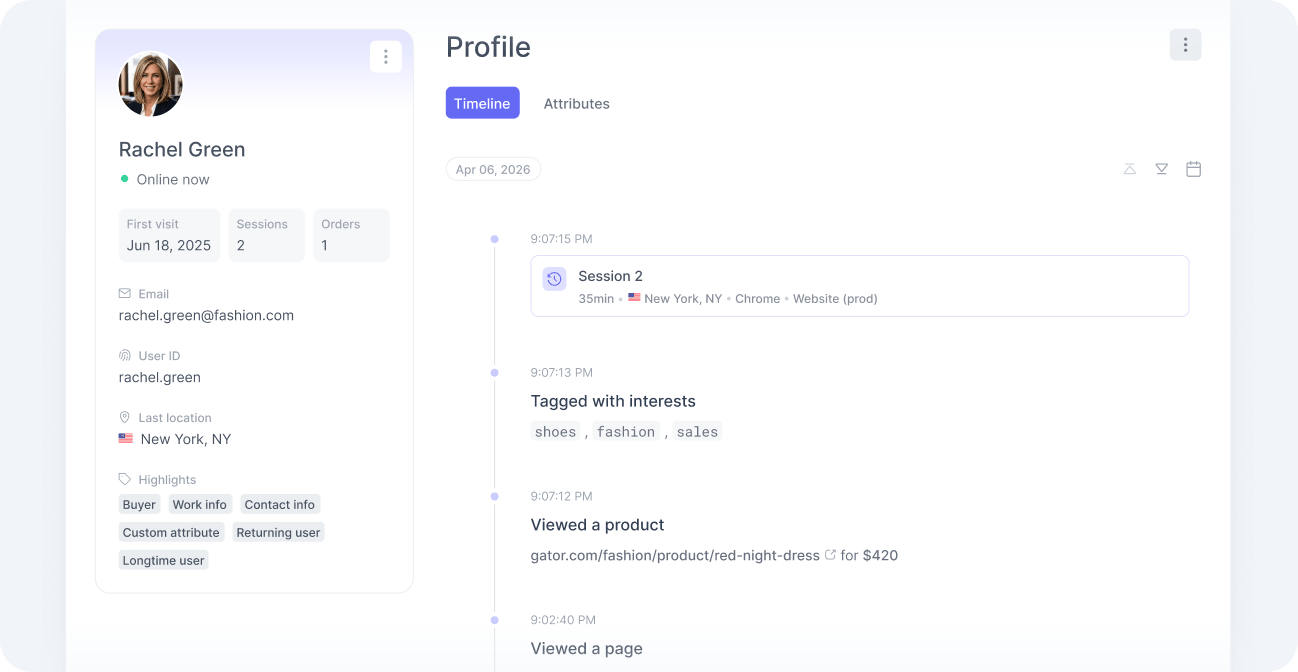
The timeline lists events from the latest to the earliest. Use the toolbar in the top right to jump to the latest event, the first one, or a specific date. Picking a date opens the timeline at the latest event for that day.
Each session has a marker on its last event, making the session boundaries easy to spot. For live sessions, the marker sits on the most recent event so far, with its dot pulsing to indicate the session is still active.
Linked sessions
Linked sessions occur when a user is identified.
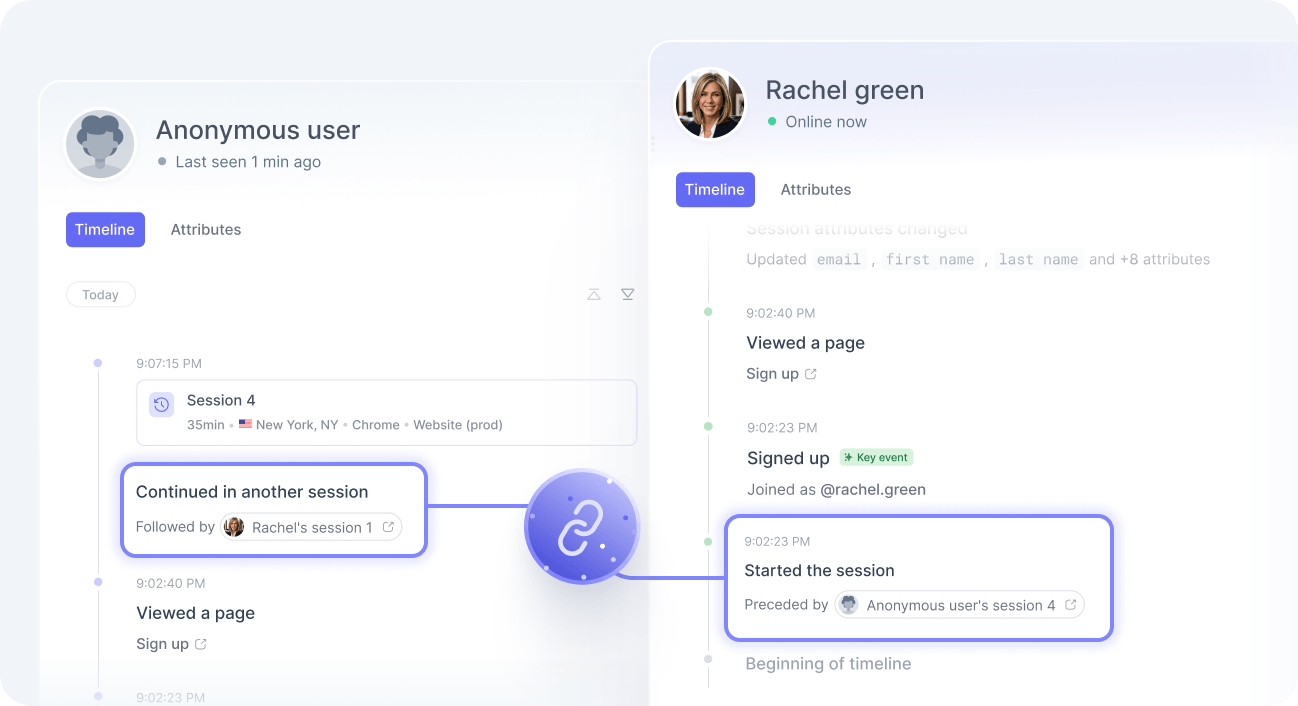
Although anonymous and identified profiles are treated as separate users, their sessions remain connected in the timeline. This allows you to follow the full journey, from initial anonymous interactions to identified activity after login or sign-up.
Concurrent sessions
Concurrent sessions occur when the same user has more than one session running at the same time. This can happen, for example, when an identified user is signed in on both desktop and mobile, or when they have two different browsers open on the same device.
Concurrent sessions can also span different applications, such as the production and development applications of the same workspace, or a blog and an e-commerce website running in parallel.
Concurrent sessions across applications are only tracked when the anonymity scope is set to workspace or organization.
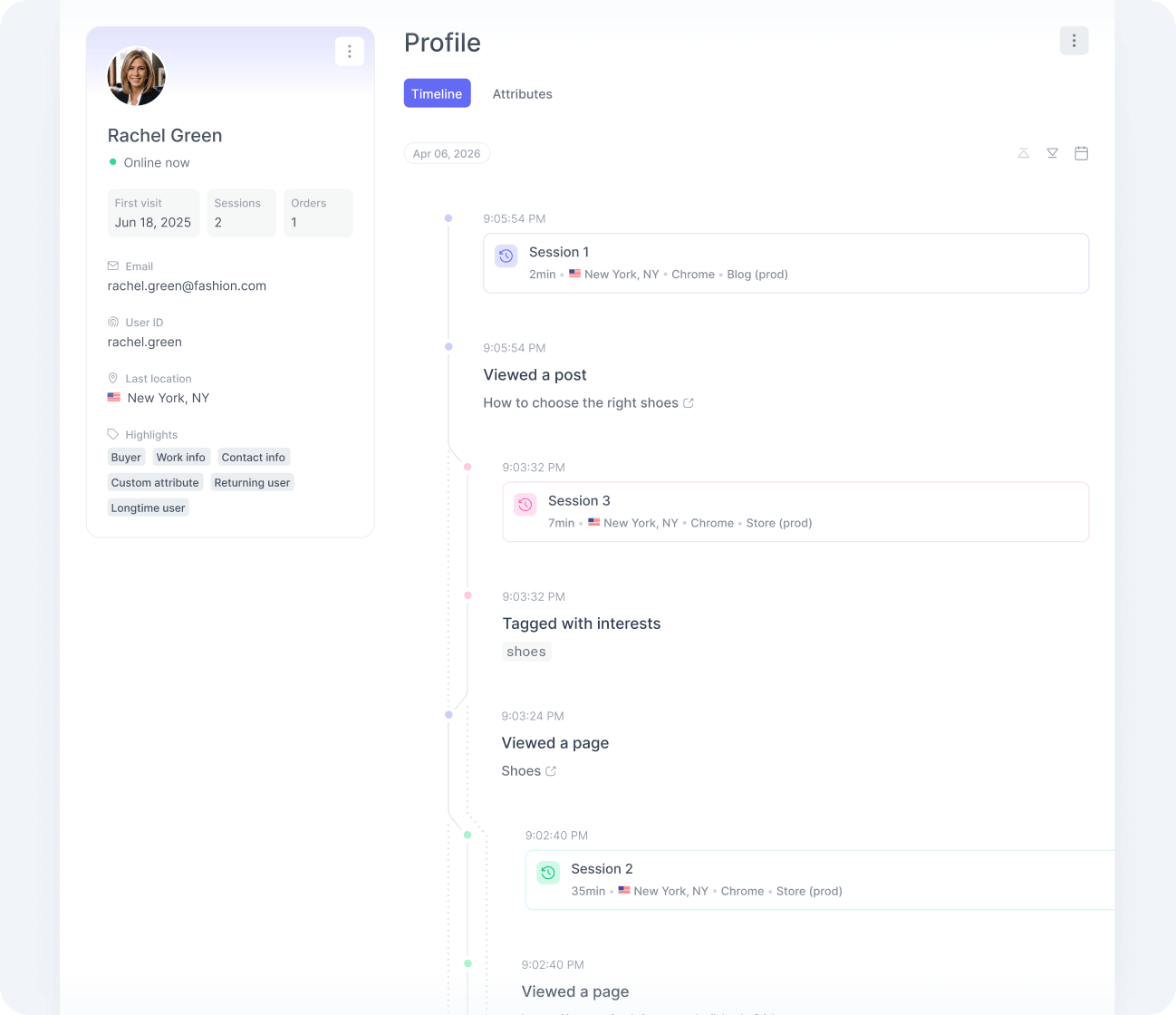
Sessions appear as vertical tracks in the timeline, each in a different color. A point on the timeline represents one event. A session’s track is solid at events that belong to it, and dashed at events from other concurrent sessions. The colors let you follow them independently when they overlap.