Forward VTEX events to Croct
Automatically track VTEX store events and enrich user profiles.
This integration connects your VTEX store to Croct. Once set up, it automatically tracks your store’s e-commerce events in Croct and enriches user profiles with your customers’ data, so you can build audiences, run AB tests, and personalize the storefront with no extra development work.
It works with stores built with Store Framework (VTEX IO).
FastStore storefronts report their interactions as GA4-style analytics events, which this integration does not listen to. If your storefront pushes those events to the data layer, use the Google Tag Manager integration instead.
How it works
The integration listens to the events your store already broadcasts and forwards them to Croct.
For each supported event, it does the following:
- Records a conversion as a goal completed event, so every interaction is available for targeting and analysis.
- Tracks the matching Croct event when the payload carries the details of the interaction, such as a product view or an order.
- Enriches the user profile when the payload carries customer data.
Conversions
The goal ID is derived from the VTEX event name: the vtex: namespace is dropped, the camel case name is converted to kebab case, and the result is prefixed with vtex-. For example, vtex:productView becomes vtex-product-view.
These goals power experiences and experiments, letting you target each one directly when building audiences and analyzing experience or experiment dashboards.
Event mapping
The integration maps VTEX store events to our e-commerce and engagement events:
| VTEX event | Croct event |
|---|---|
| vtex:productView | productViewed |
| vtex:cart | cartModified |
| vtex:cartLoaded | cartModified |
| vtex:cartChanged | cartModified |
| vtex:addToCart | cartModified |
| vtex:removeFromCart | cartModified |
| vtex:viewCart | cartViewed |
| vtex:beginCheckout | checkoutStarted |
| vtex:orderPlaced | orderPlaced |
| vtex:orderPlacedTracked | orderPlaced |
| vtex:search | eventOccurred |
| vtex:addToWishlist | eventOccurred |
| vtex:userData | - |
| vtex:login | - |
| vtex:signUp | - |
| vtex:addPaymentInfo | - |
| vtex:addShippingInfo | - |
| vtex:promoView | - |
| vtex:promotionClick | - |
The eventOccurred events carry a few relevant details from the source event:
| VTEX event | Event name | Tracked details |
|---|---|---|
| vtex:search | vtex-search | searchTerm |
| vtex:addToWishlist | vtex-add-to-wishlist | id, name, category, brand, variant |
Events without a dedicated Croct event are tracked as conversions only.
For the details of each source event, see the VTEX store events documentation.
VTEX reports a purchase more than once, but the integration tracks the order only once, so revenue is never counted twice.
Profile enrichment
The integration also uses VTEX customer data to enrich the user profile with standard attributes:
| VTEX event | Enriched attributes |
|---|---|
| vtex:userData | firstName, lastName, email, and phone |
| vtex:cart, vtex:cartLoaded | firstName, lastName, email, and address |
| vtex:orderPlaced, vtex:orderPlacedTracked | phone and address |
Prerequisites
Before you start, make sure you have:
- A Croct account with a workspace and application set up.
- The Croct SDK installed and running on your storefront.
- A VTEX store built with Store Framework (VTEX IO).
Send data from VTEX to Croct
You can add the integration in one of two ways:
- Add a script tag directly to your storefront’s source code.
- Use Google Tag Manager to inject the script without changing the source code.
Add a script tag
Add the following script to your storefront’s HTML, either in the <head> or the <body>:
<script src="https://cdn.croct.io/plug-integration/vtex.js"></script>The integration captures the events broadcast from the moment it loads, so any event fired before that is lost. Loading it as early as possible ensures the first events are tracked.
Use Google Tag Manager
If you prefer not to edit your source code, you can use Google Tag Manager (GTM) to inject the script for you.
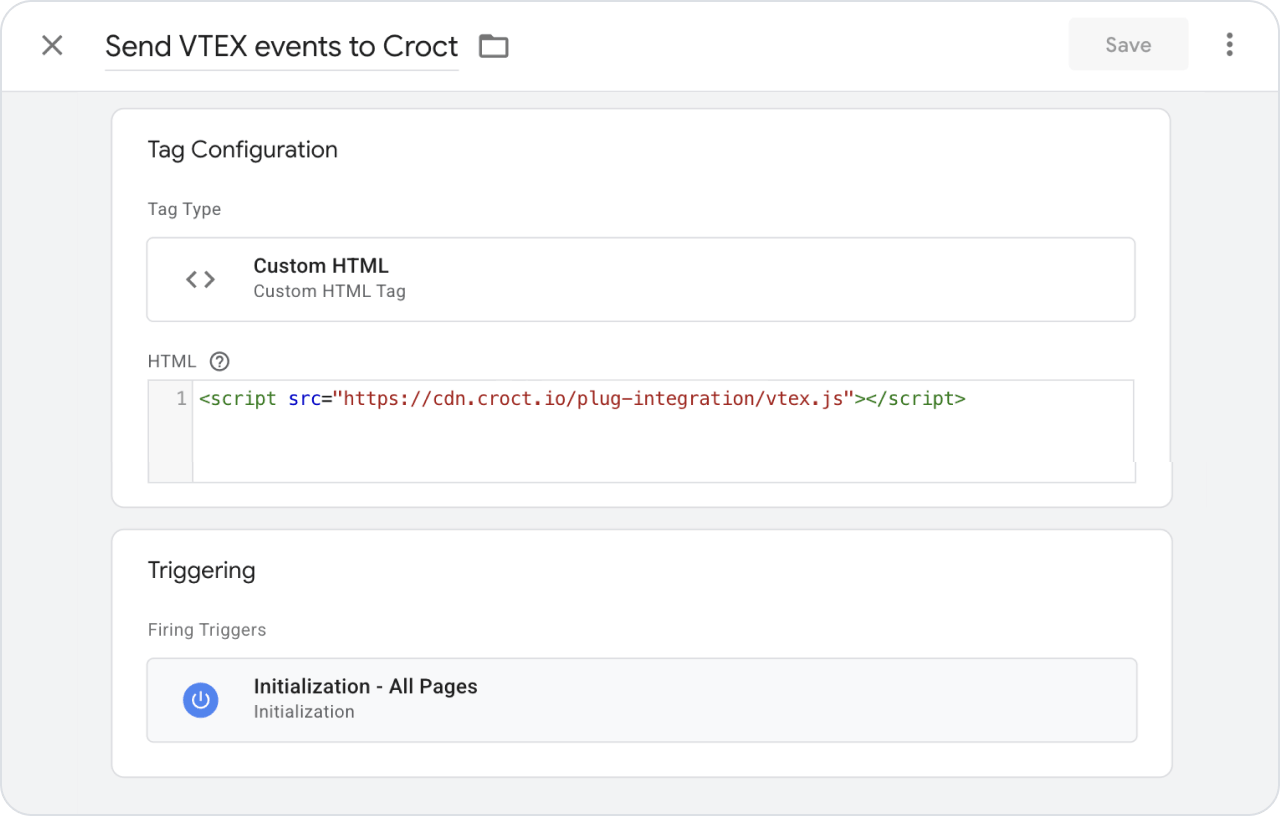
In Google Tag Manager, select Tags > New.
Name the tag as Send VTEX events to Croct.
Set the tag type to Custom HTML.
Copy and paste the following code into the HTML field:
Custom HTML tag<script src="https://cdn.croct.io/plug-integration/vtex.js"></script>Select the trigger Initialization - All Pages, so the listener is added as early as possible on every page.
Click Save, then Submit to publish your container.
Your tag should look like this:
Verify the integration
Once the script is live, confirm that events and customer data appear on dashboards and user profiles.
- Browse your store
Open your storefront and view a product, add it to the cart, and start a checkout. Sign in so customer data is available.
- Check the events
Open the dashboard page in the admin app and confirm that conversions are arriving.
- Check the profile
Open the user profiles page, open a profile, and confirm the Attributes tab shows the customer data ingested from VTEX.
With store events and customer data flowing into Croct, you can now create audiences from shopping behavior and optimize the storefront.