Integration
Learn how to integrate Croct into your PHP project.
The fastest way to get started is through our CLI. If you prefer to set it up manually, check out the step-by-step instructions.
Run the command
The recommended way to install the SDK is to use the Croct CLI.
npx croct@latest initInitialize the SDK
Add your credentials to a .env file in your project root:
CROCT_APP_ID=<APPLICATION_ID>CROCT_API_KEY=<API_KEY>You can find the application ID and create an API key on the Integration page of your application.
Then set up the SDK and hand off to the browser so personalization continues transparently on the client side:
<?phpuse Croct\Plug\Croct;
$croct = Croct::fromDotenv();$content = $croct->fetchContent('home-banner')->getContent();Croct::emitCookies();?><!DOCTYPE html><html lang="en"><head>    <meta charset="utf-8">    <title>My application</title></head><body>    <h1><?= $content['headline'] ?></h1>    <p><?= $content['tagline'] ?></p>
    <script src="https://cdn.croct.io/js/v1/lib/plug.js"></script>    <script>croct.plug(<?= json_encode($croct->getPlugOptions()) ?>);</script></body></html>
The fromDotenv factory reads the credentials from your .env file and uses a cookie-based session store. Calling emitCookies writes the session cookies before any output, while getPlugOptions returns the configuration the JavaScript SDK needs to work transparently with the same session. For more details, see Client-side setup.
Check your integration
If you open your application now, it should start sending events.
To check if your integration is working, go to the Integration page of your application.
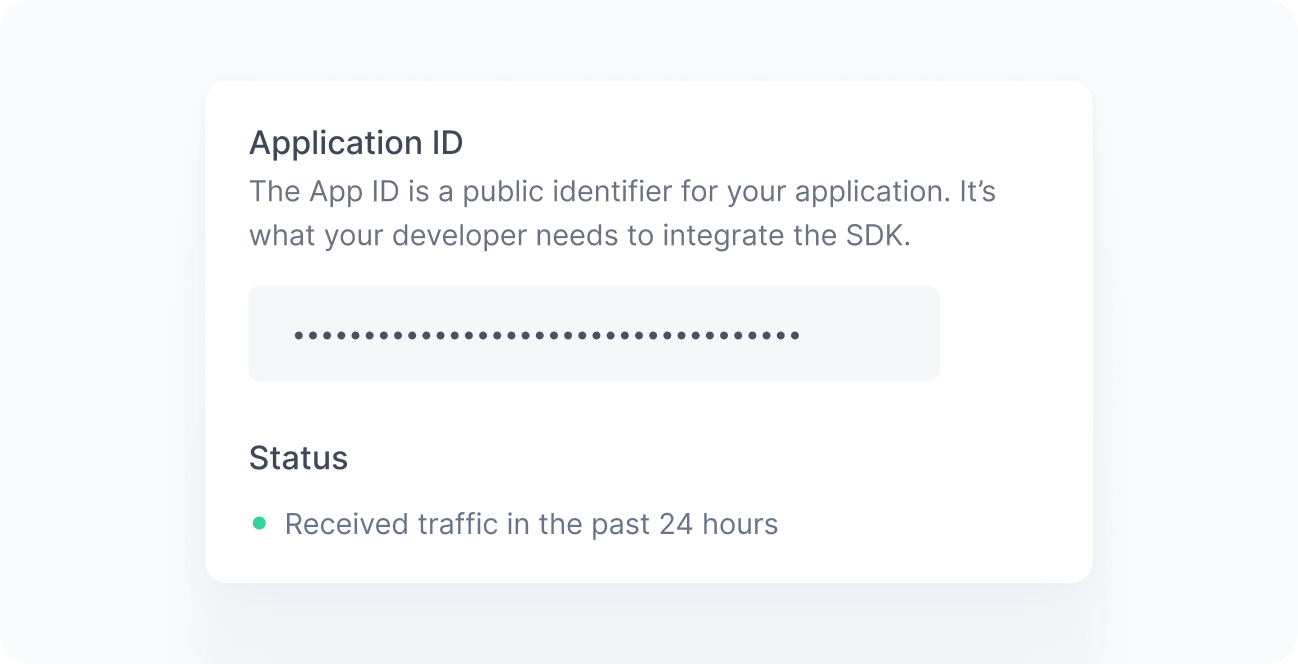
When working correctly, you should see a green bullet next to the Status label saying “Received traffic in the past 24 hours”. If you still do not see this message after a few minutes, see the Troubleshooting reference.