Preview
Learn how to preview experience and experiment content.
Preview links let you simulate how content from an experience or experiment appears to a specific audience, even if you are not part of that audience. This allows you to view the application exactly as a targeted user would and gives you confidence that everything looks and behaves as expected before publishing.
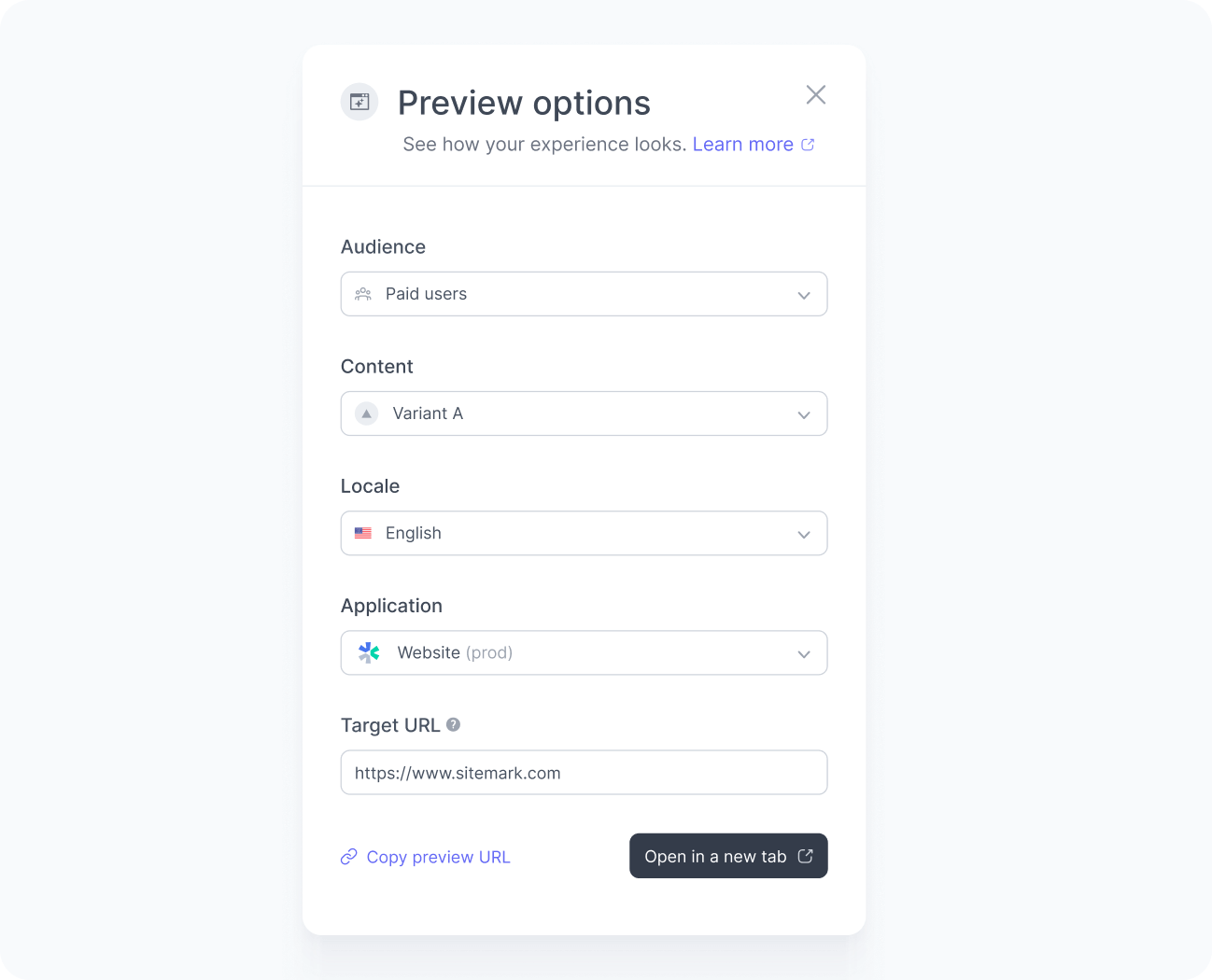
How it works
When you open a preview link, the application loads with the selected content applied, exactly as configured in the experience or experiment.
In the bottom-right corner of the screen, a widget indicates that you are in preview mode.
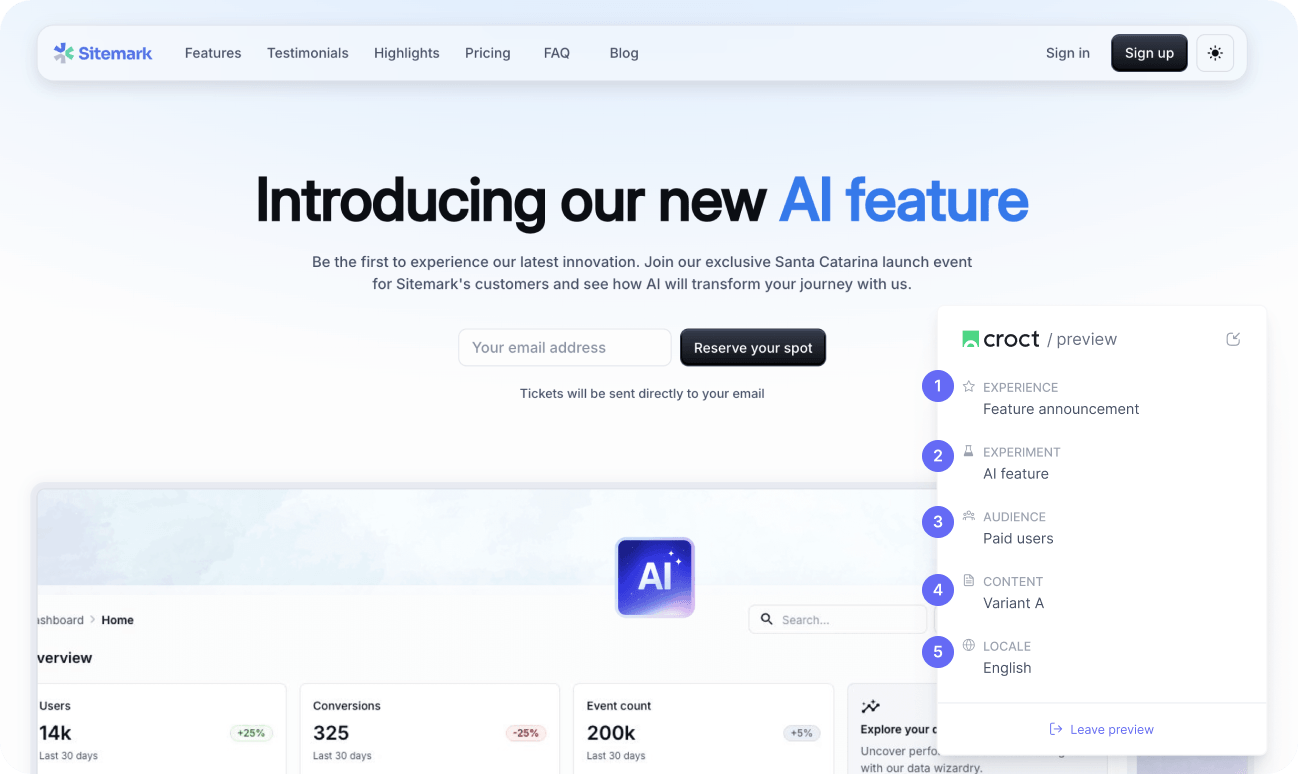
The widget shows:
- The experience you are previewing.
- The experiment, if the experience includes an active experiment.
- The selected audience.
- The content variant.
- The content locale.
Link duration
Preview links are valid for 24 hours, and you can share them with anyone on your team, even if they do not have a Croct account.
If a preview link expires, you can generate a new one at any time. There is no limit to how often you can create preview links.
Common issues
If your preview link does not work as expected, here are the most common reasons to investigate and how to fix them.

If your site uses caching layers or a CDN, opening the preview link in an incognito window can help avoid interference from cached responses or other preview links opened in parallel tabs.
Incorrect page URL
When generating a preview link, you choose which page opens in preview mode. By default, this field is filled with the main domain configured in your application settings. Since a slot can appear on multiple pages, set the URL to the page you want to preview, or navigate to it after the preview opens.
Slot not integrated
The slot used in the experience may not be integrated into your application yet. Check the slot status to confirm if it is properly integrated.
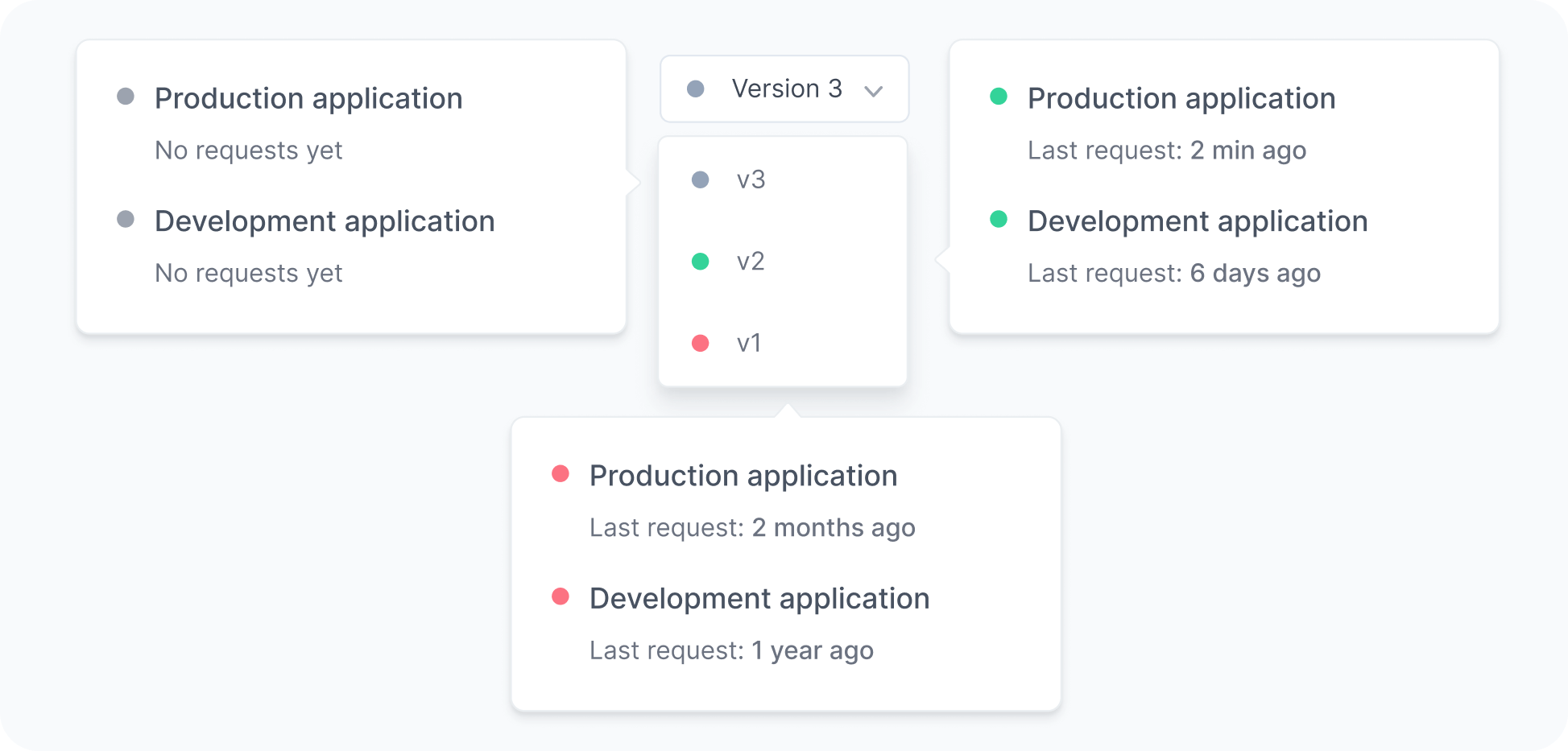
Slot version mismatch
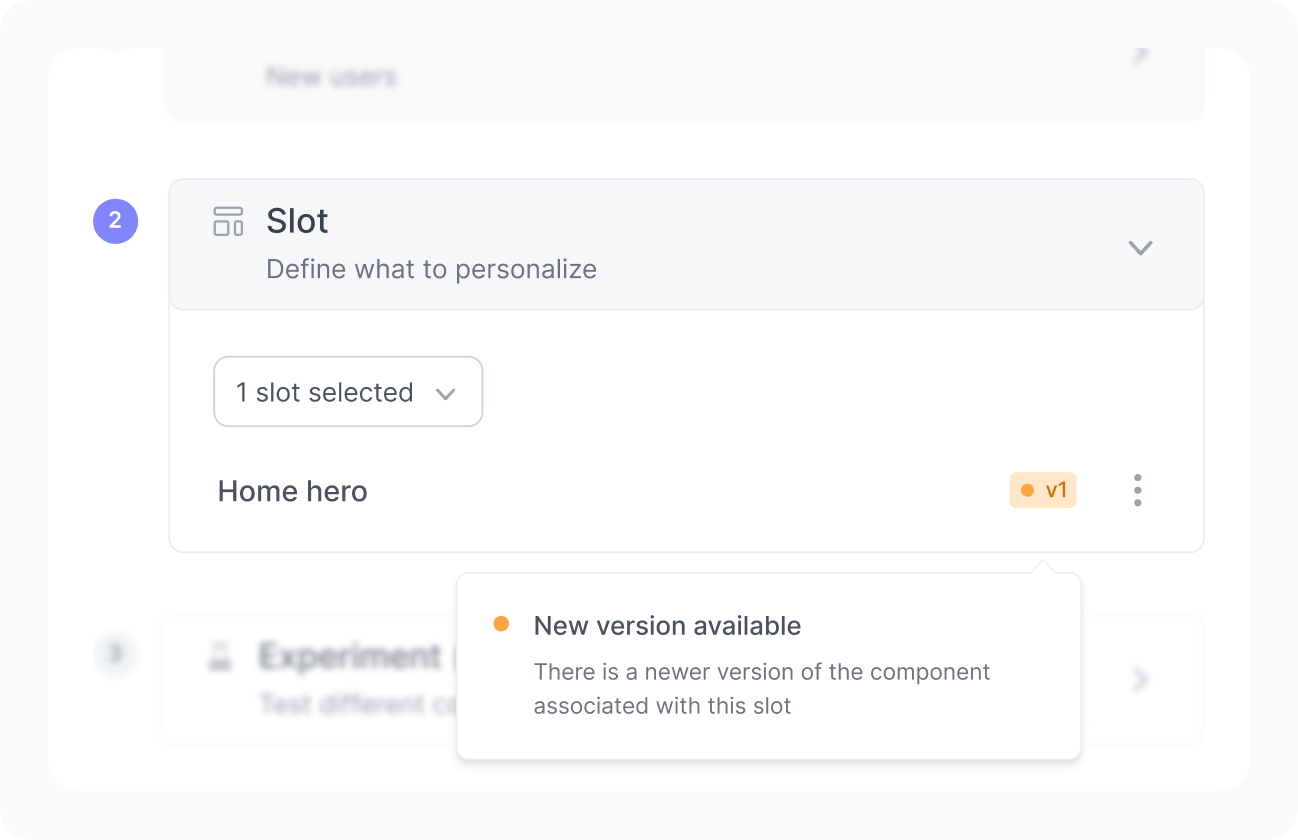
The slot version used in your experience may not match the version in your application. When this happens, the preview shows the last content compatible with that slot version, which may not reflect your most recent edits. Update the slot version in your experience to match the version used in your application.
When this happens, an orange dot appears on the slot in the experience editor, indicating that its version is out of sync with the application.
Unauthorized domains
If your slot is rendered on a domain or subdomain that is not listed as a trusted origin, the content will not load. Add the URL to the trusted origin list in your application settings.
Corrupted preview URL
Preview links can be long and may be truncated by messaging apps with character limits. If you receive a preview link from a teammate, look for the preview widget in the bottom-right corner to confirm preview mode is active.
If the widget is missing, the link may be incomplete. Ask your teammate to resend the full link or share it using a method that preserves the complete URL.
Paused experience
If the experience is paused, the preview displays the slot default content, since paused experiences do not apply to users. To preview the experience content, activate the experience or create a draft version before generating a preview link.