Manual installation
Learn the steps to manually integrate Croct into your Drupal project.
The following guide gives you a step-by-step overview of how to install and configure the module in your project.

The CLI can fully automate the integration process for you. Check out the integration guide to get started faster.
Install the module
Install the module using Composer:
composer require croct/plug-drupalThis pulls in the PHP and Symfony SDKs it builds on, along with a PSR-18 HTTP client, so there is nothing else to install.
Enable the module
Enable the module with Drush:
drush en croctYou can also enable it from the Extend page at /admin/modules.
Configure your credentials
Add your application ID and API key to settings.php:
$settings['croct.app_id'] = '<APPLICATION_ID>';$settings['croct.api_key'] = '<API_KEY>';You can find the application ID and create an API key on the Integration page of your application.
Drupal compiles settings.php into its cached container, so rebuild the cache to apply the credentials:
drush crFor all available settings, see Configuration.
Check your integration
If you open your application now, it should start sending events.
To check if your integration is working, go to the Integration page of your application.
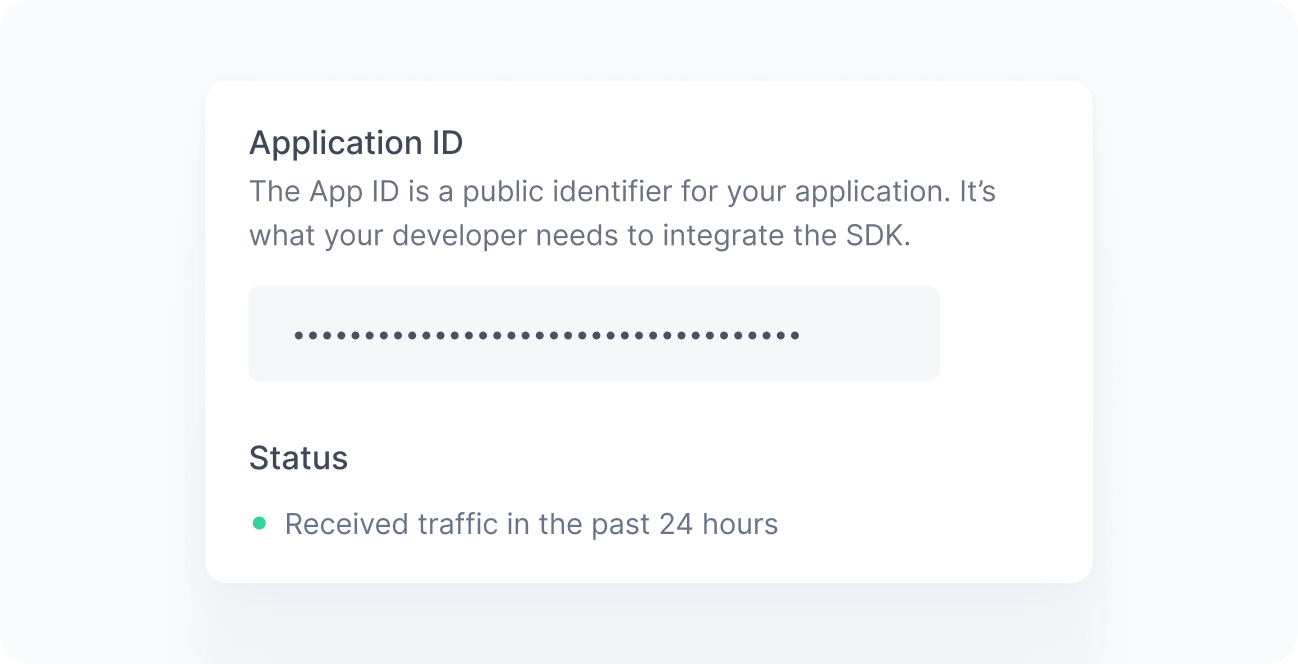
When working correctly, you should see a green bullet next to the Status label saying “Received traffic in the past 24 hours”. If you still do not see this message after a few minutes, see the Troubleshooting reference.