Filters
Learn how to use filters in the experience dashboard.
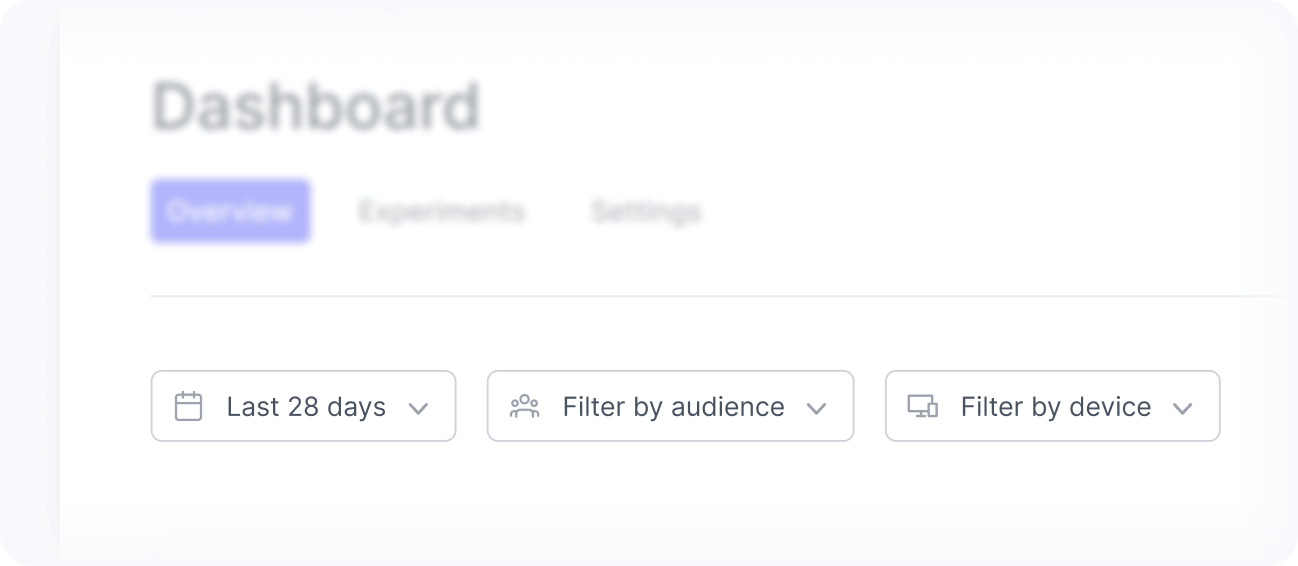
Filters let you refine the data displayed in the experience dashboard and focus your analysis on specific periods, audiences, or devices. By combining these filters, you can better understand how different user segments interact with a single experience.
All filters apply to all widgets.
Date filter
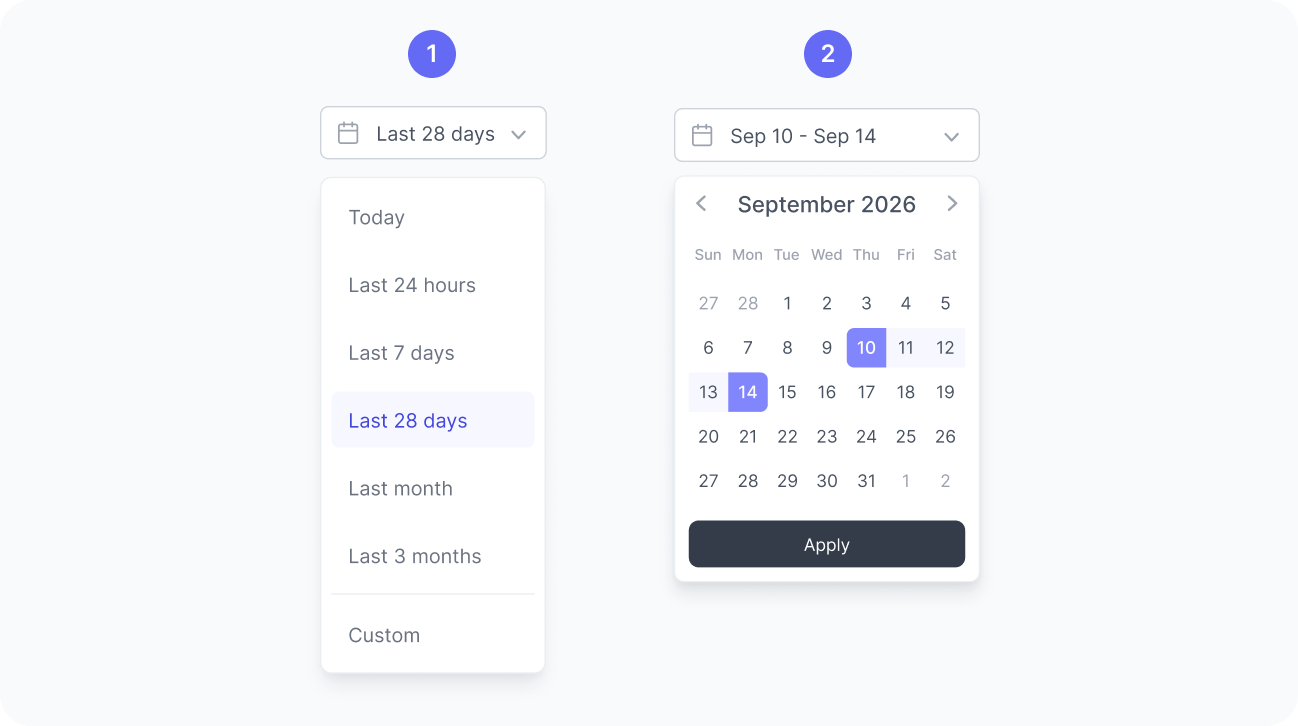
By default, the dashboard displays data from the last 7 days, but you can also choose from other predefined ranges, such as today, last 14 days, or last 28 days, or define a custom date range like September 10 to 14.
Audience filter
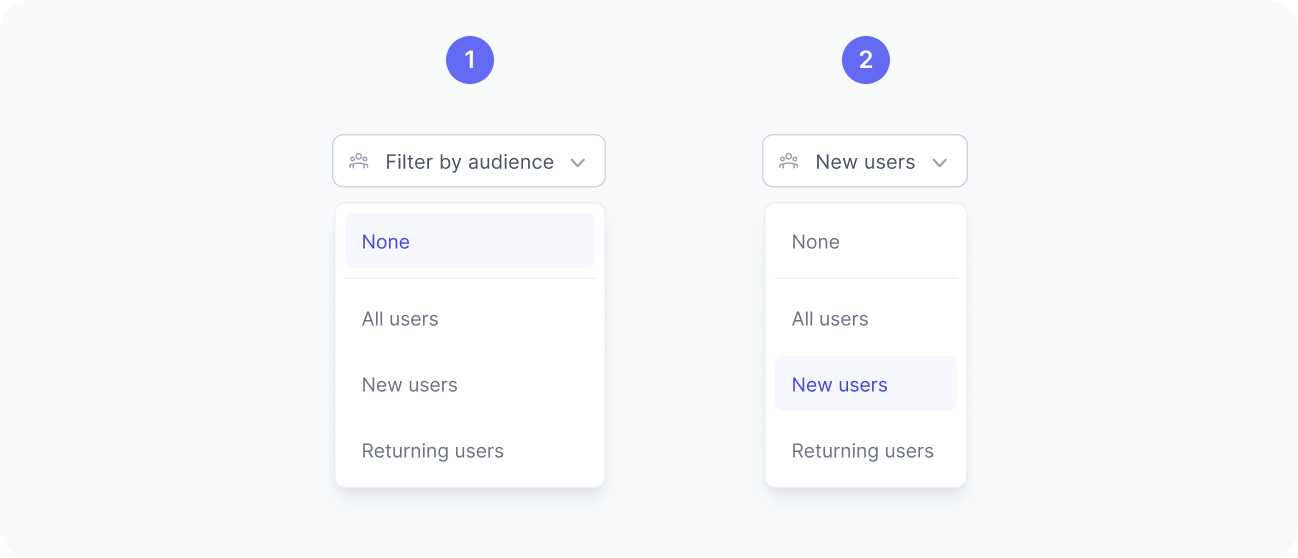
By default, the audience filter includes all audiences in the experience that received traffic during the selected period. You can narrow your analysis by selecting a specific audience from the list.
Once applied, the dashboard updates to show data only from users who matched that audience, helping you assess performance and understand how the experience resonates with different user groups.
Device filter
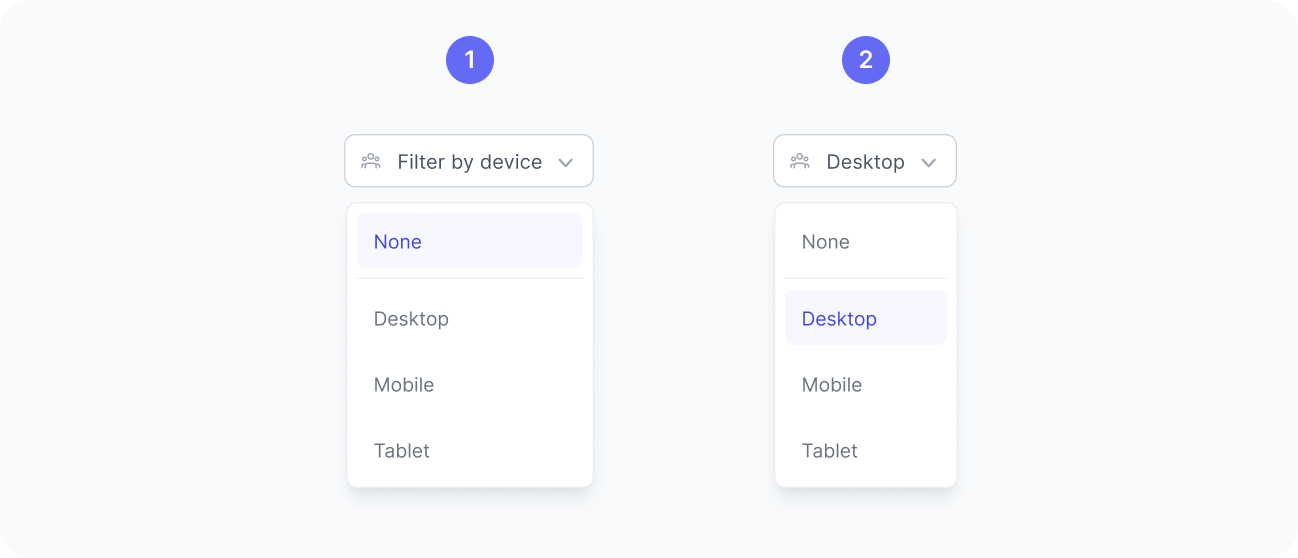
By default, the device filter is set to all devices in your experience. You can narrow the analysis by selecting a specific device type, such as mobile, desktop, or tablet.
When you apply a device filter, the dashboard updates to show data only from sessions on the selected device. This allows you to compare performance across devices and identify opportunities to optimize the experience for different screen sizes or usage contexts.