Plan changes
Learn more about plan upgrades and downgrades.
You can change your plan, volume, and billing cycle at any time from the Plans tab.
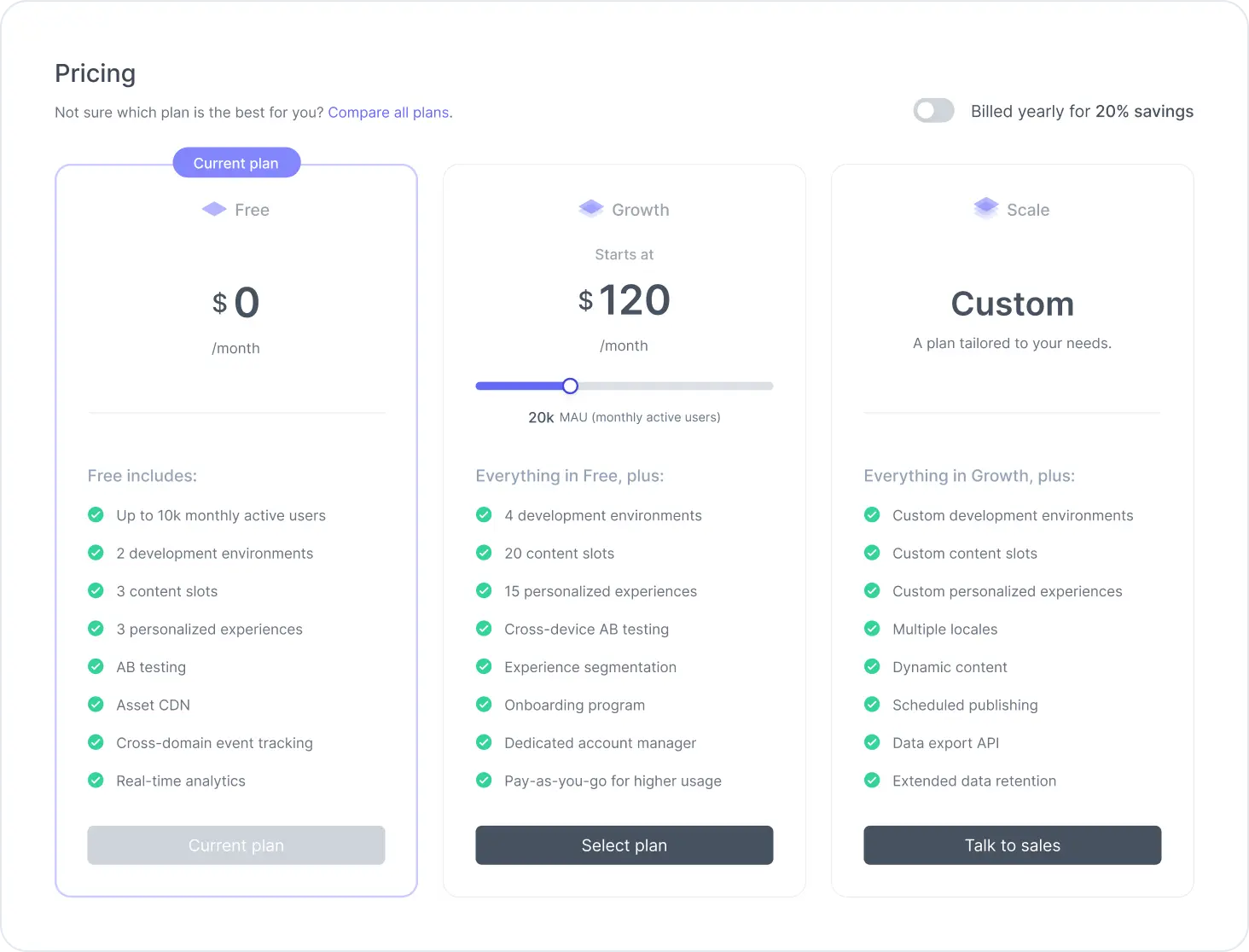
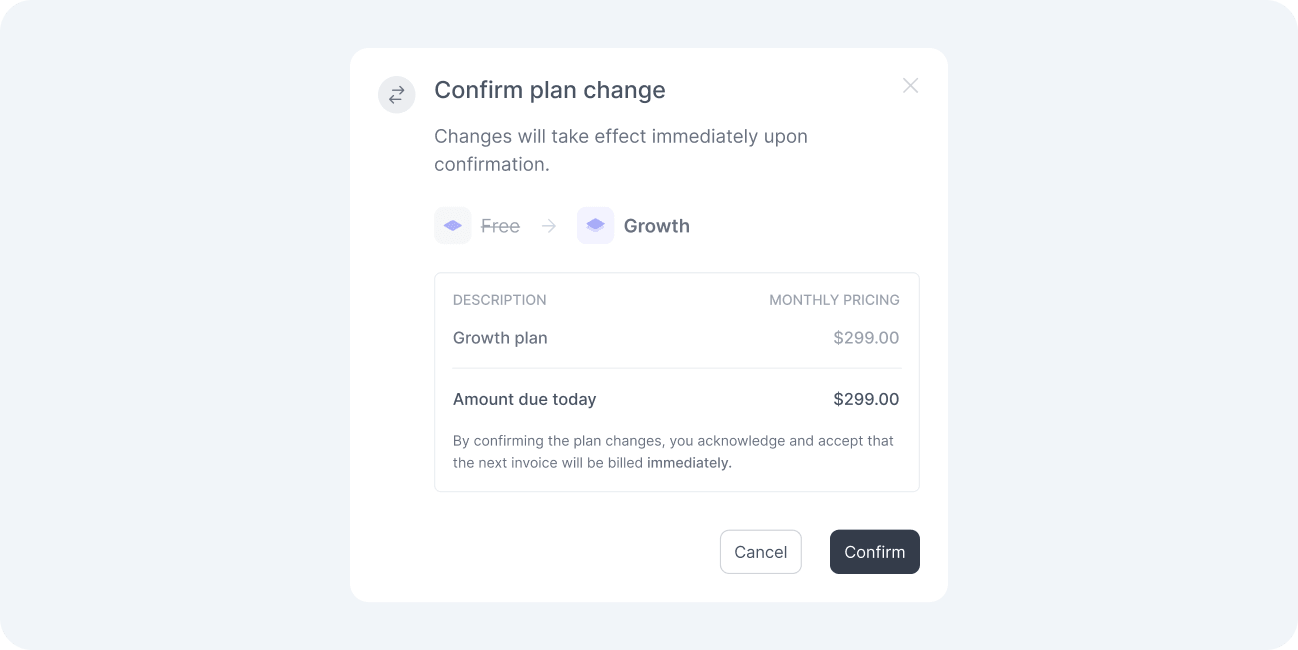
Before we apply any change, we show you a summary with the new plan, any extras that remain in your subscription, and the amount we charge you, either right away or on your next invoice.
Upgrades
When you upgrade to a plan that already includes a feature you were paying for separately, we remove the corresponding feature add-on from your subscription so we do not charge you twice.
If you use a feature add-on not included in the new plan, we keep it and continue billing it alongside the new plan.
Downgrades
Before we apply a downgrade, we check whether your current usage fits within the new plan’s limits. We never remove features you configured yourself, so what happens next depends on the feature type.
Features that require your action
We do not automatically adjust resources you create, such as workspaces, applications, audiences, components, slots, experiences, and locales, since we cannot know which ones you want to keep.
If your usage exceeds the limits of the new plan, we keep the difference as an extra quota in your subscription so nothing stops working. The confirmation dialog shows this as a partial downgrade, listing exactly which extras remain and how much they will cost. We charge you only for usage above the new limit. For example, if the new plan includes three experiences and you are using six, the extra quota covers the three additional experiences.
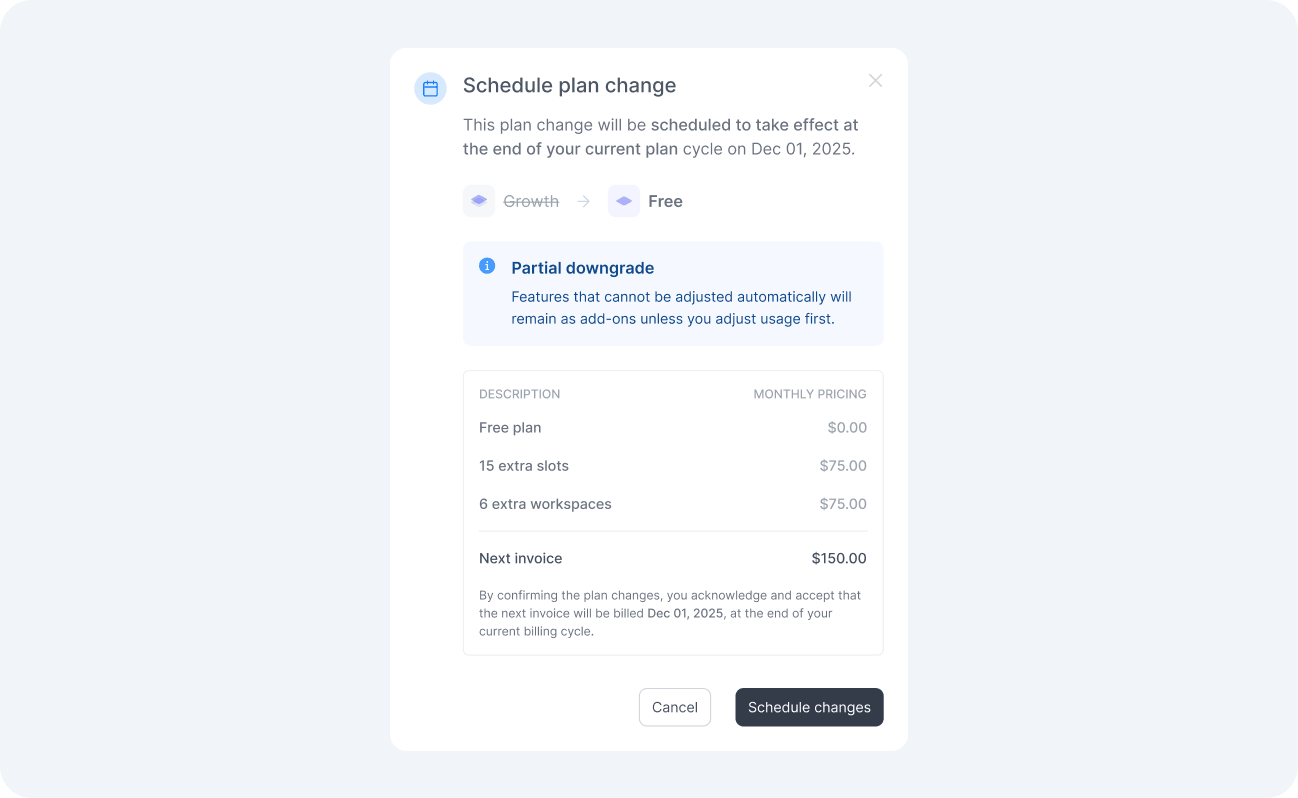
To avoid the extra charge, reduce your usage to fit the new plan before scheduling the downgrade.
Features and quotas we adjust automatically
For the following features and quotas, the new subscription settings apply automatically:
- Dynamic content: Existing dynamic content becomes static content.
- Audiences per experience: Experiences that exceed the new limit keep running, but you cannot add audiences.
- Scheduling: You can delete existing schedules, but you cannot create new ones.
- Monthly active users: The new quota applies without resetting your current usage.
To edit an experience that targets more audiences than the new plan allows, first reduce its audiences to fit the new limit.
When changes take effect
When you change your subscription, we calculate the amount due, taking into account the unused portion of your current billing period. For example, if you upgrade halfway through a monthly cycle, we credit the unused half of your current plan against the price of the new one and charge you the difference.
A change that costs more than your current subscription takes effect immediately. A change that costs less would leave a credit balance, so we schedule it for the end of the current period instead, letting you use what you have already paid for.
An immediate change to your plan, billing cycle, or monthly active user volume starts a new billing period. When you only add an extra to your current subscription, we charge it proportionally for the remainder of the period and keep your existing billing date.
Billing date
Your billing date is the day of the month we issue your invoice.
If the billing date falls on a day that does not exist in a given month, we issue the invoice on the last day of that month. For example, for a subscription with a billing date on the 31st, we issue the invoice on the 30th in April and on the 28th or 29th in February.
Scheduled changes
When we schedule a change for the end of your billing period, it appears on your billing page as an upcoming plan change, along with its effective date. Your current subscription remains active until then.
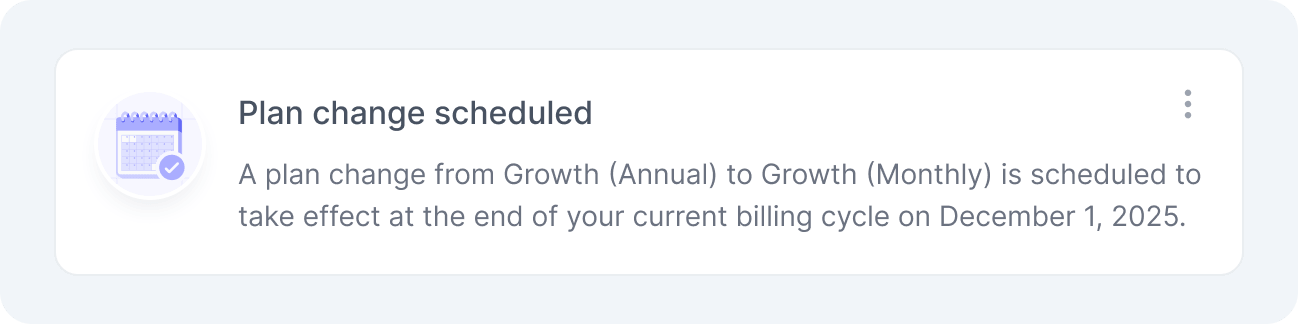
You can have only one scheduled change at a time. To select a different plan, first cancel the pending change, which leaves your subscription unchanged on your current plan, and then select the plan you want.
Unavailable plan changes
Organizations with a negotiated custom contract may have parts of their subscription locked. When a restriction applies, we disable the corresponding action and point you to our team so we can review your options together.
Other situations can also temporarily prevent plan changes:
- Overdue invoices: Settle your open invoices before switching plans.
- Pending scheduled changes: Cancel the upcoming change to select a different plan.
- Subscription updates in progress: Wait for the current change to finish, which takes a few moments.
If your organization has no registered payment method, we ask you to add one when you confirm the change.