Filters
Learn how to filter data in the workspace dashboard.
Filters let you narrow the time frame and scope of data displayed in the workspace dashboard. You can use them to focus on specific periods or audiences and better understand how user behavior evolves.
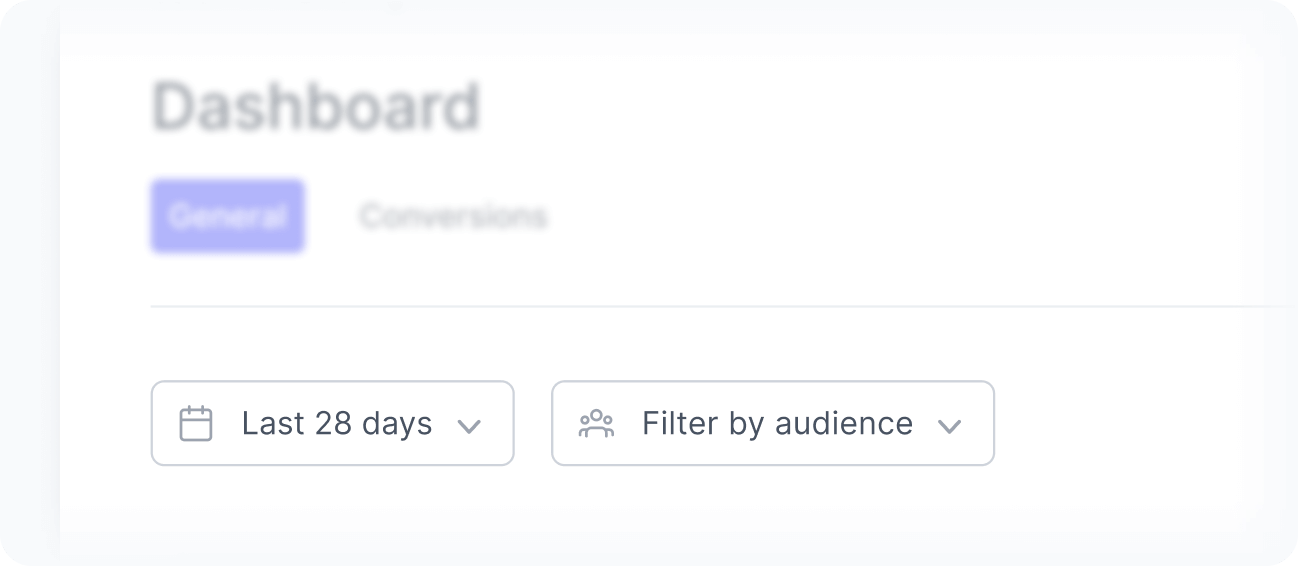
Filters apply to all widgets but Online users, which always shows the number of users active in your applications in the last 30 minutes.
Date filter
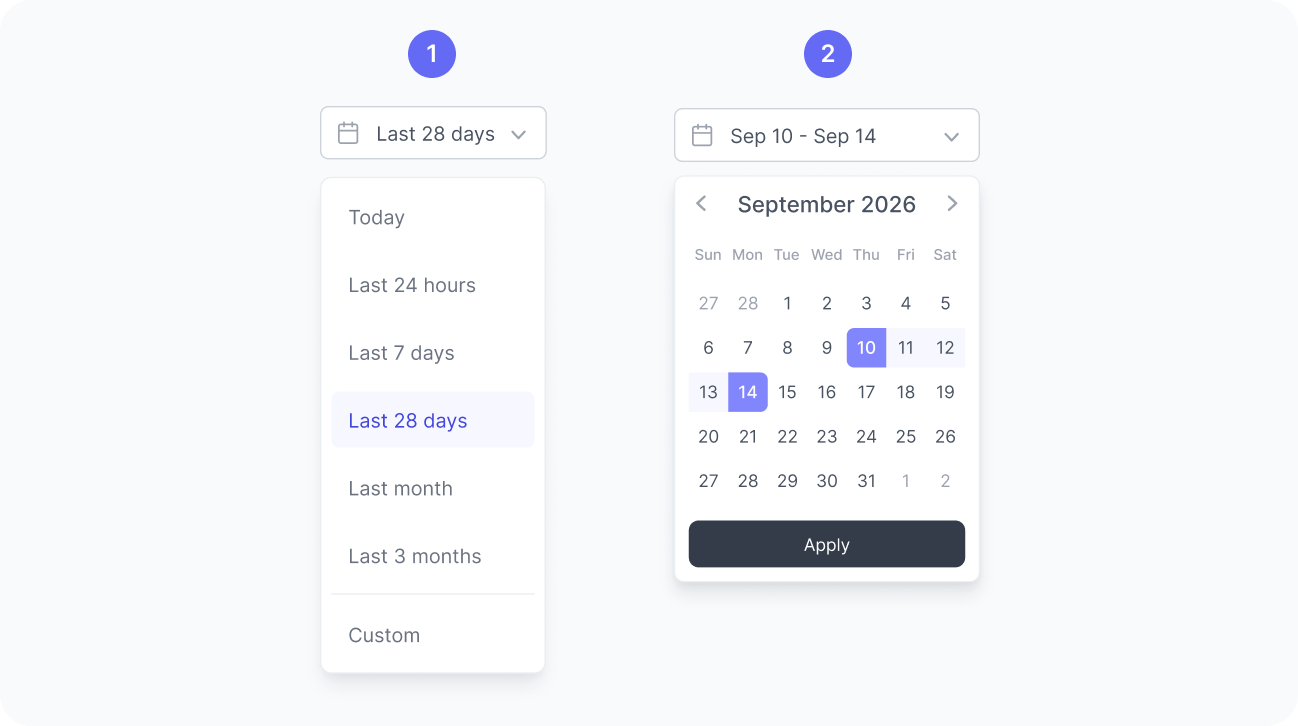
By default, the dashboard displays data from the last 7 days. You can choose from other predefined ranges like today, last 14 days, or last 28 days, or define a custom date range.
Audience filter
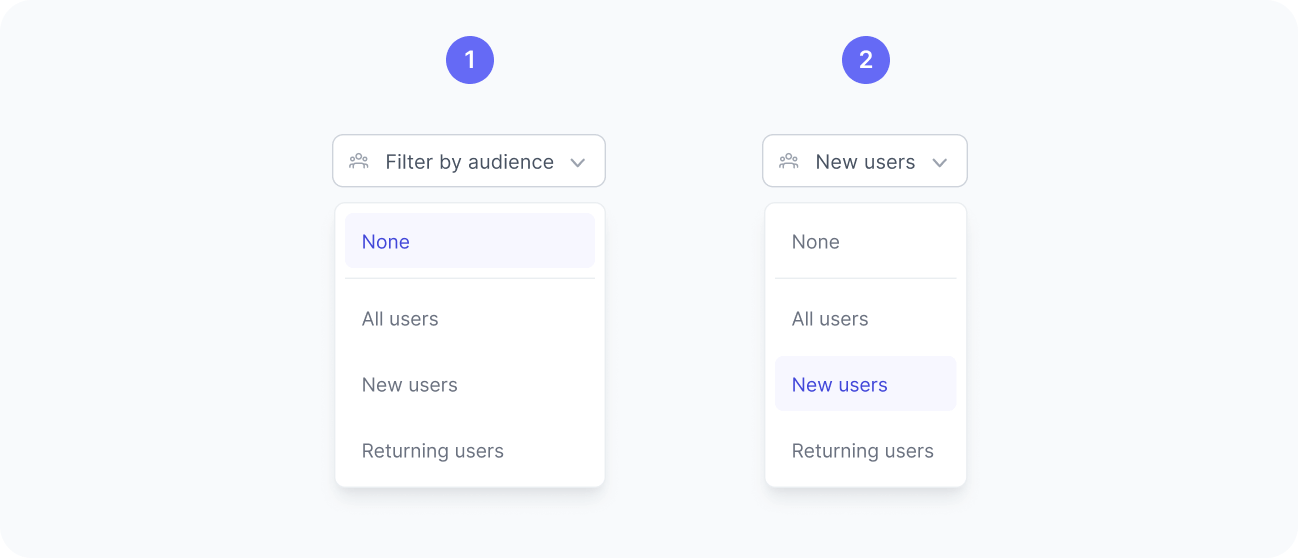
Every audience with matched users appears in the audience filter. When you select an audience, the dashboard shows data only from users who matched it, so you can analyze how that group behaves across your applications.
The top audiences widget behaves differently when an audience filter is applied. Instead of showing the most matched audiences overall, it shows the top 10 audiences that users matched after the selected one.
For example, suppose a user matches audiences in this order:
- Audience A
- Audience B
- Audience C
Filtering by Audience A shows Audience B and Audience C, since the user matched them after Audience A. Filtering by Audience B shows only Audience C.
This lets you track audience progression and see how users move between audiences over time, helping you spot behavioral patterns and segmentation trends.